Connect an AI assistant to your Orbit
You can let an AI assistant such as Claude Code look at your Orbit, for example to answer “what is on this week?”. You decide which spaces it may see and whether it may only read. You can end the connection at any time. This is different from the public guide connection described in Use the guide in your AI assistant, which never sees your data.
This is available only when the person running your Orbit has turned it on. If you do not see the card AI assistants in your settings, it is off.
Connect an assistant
Section titled “Connect an assistant”- Open My Orbit › Settings and find the card AI assistants.
- Copy the command shown there with Copy command and run it in your terminal. For Claude
Code it looks like
claude mcp add --transport http orbit <address>/mcp. - In your assistant, start the connection (in Claude Code, type
/mcp, chooseorbitand authenticate). A page of Orbit opens and asks who is asking, what it may do and in which spaces. - Choose at least one space and Read only or Read and change, then Allow.
Only continue if you started the connection yourself. Chat assistants on the web, such as ChatGPT or Claude on the web, need Orbit to have a public address and cannot connect yet.
See and change what an assistant may do
Section titled “See and change what an assistant may do”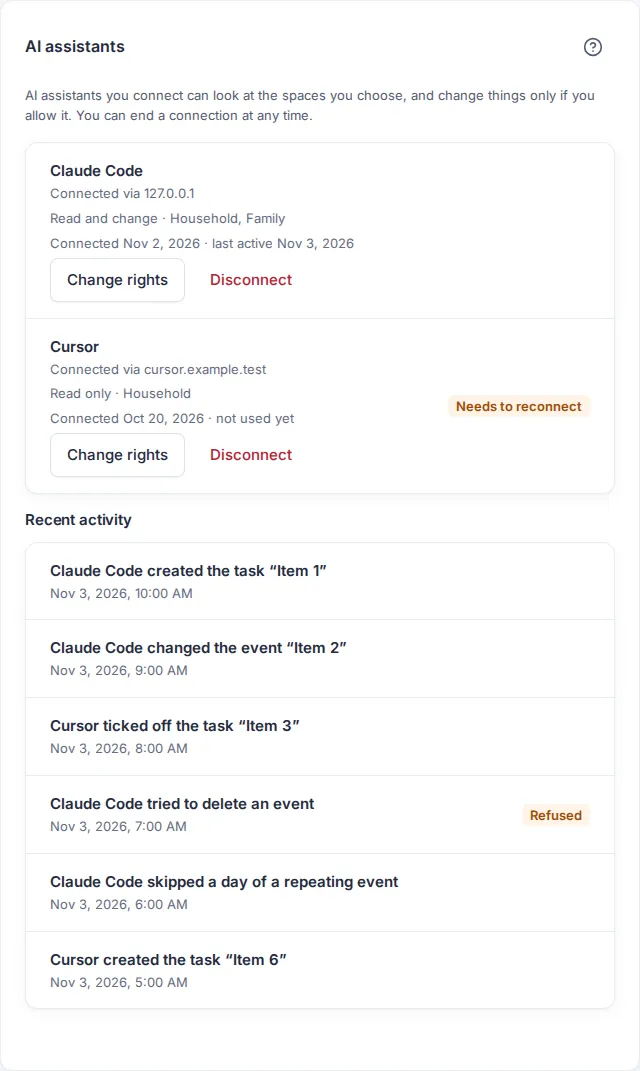
The card lists every connected assistant with where it connects from, its rights, its spaces, when it connected and when it was last active. Needs to reconnect means its access has expired; start the connection again from the assistant.
- Change rights lets you take rights away: fewer spaces, or Read only instead of Read and change. The change counts from the assistant’s next request.
- To give an assistant more, disconnect it and connect it again, so you see the choice again.
See what an assistant did
Section titled “See what an assistant did”Under the assistants, Recent activity lists what your assistants did in the last 90 days, newest first: for example “Claude Code created the task “Buy milk”“. The line shows when it happened. If an assistant tried something that was not allowed, the line carries Refused and nothing was changed. If the item has been deleted since, or you can no longer see its space, the line says “an item” instead of its name. Choose Show more for older entries.
If you own a space, its settings page has the card AI assistant activity. It shows what the assistants of every member did in that space, with the name of the person. The card appears only when there is something to show.
Disconnect an assistant
Section titled “Disconnect an assistant”Choose Disconnect on the assistant and confirm. It loses access with its next request. You can connect it again later.
Import a plan with your assistant
Section titled “Import a plan with your assistant”Your assistant can read a photo or PDF of a school timetable or schedule and send it to Orbit as a draft. You check it on the review page and add it yourself; see “Importing schedules”.
Limits
Section titled “Limits”- Nobody on a family hub device can connect or manage assistants.
- An assistant sees only the spaces you chose and only what you may see yourself.
Frequently asked questions
Section titled “Frequently asked questions”Can I see what an assistant did?
Section titled “Can I see what an assistant did?”Yes. Open Recent activity in the AI assistants card. It keeps the last 90 days.
What if I do not recognise an assistant?
Section titled “What if I do not recognise an assistant?”Disconnect it. It cannot do anything afterwards unless you allow it again.
Version 0.1.0+production