Settings
Orbit keeps all your own settings and the app’s version on one page, Settings. Other things have their own place, depending on whom they affect.
| Setting | Where | Who can change it |
|---|---|---|
| Profile, security, language, appearance, first day of the week, time zone, calendar view, notifications, spaces hidden in the planner, connections, hints, version | Settings (account menu or My Orbit menu); the calendar view and the first day of the week also in the planner’s gear | you, for yourself |
| Spaces: add, name, colour, archive, restore | menu › Spaces (or Manage spaces in the side bar) | you, for your own spaces |
| People, roles, invitations of a space | the space’s Settings › People | the space’s owners |
Settings for spaces and people are described in Orbits and people and Spaces and tasks. This page covers your own settings.
Settings
Section titled “Settings”Open the account menu (your initials at the top right) or the My Orbit menu and choose Settings. There is only this one page: the former App settings are part of it. Everything here applies only to you and is saved with your account, so it follows you to your other devices. Other people who share a space with you keep their own values. Each change is saved at once; “Saved” confirms it.
The page has six groups. A list of links at the top jumps to each one: Account, Display, Planning, Alerts, Apps & services and Help. The old links to App settings and Connections open this page at the right group.

Account holds Profile, Orbit name and Security, Display holds Language, Appearance and Start page, Planning holds Week, Calendar view and Spaces hidden in the planner, Alerts holds Notifications, Apps & services holds Connections and AI assistants, and Help holds Hints and About the app.
- Profile shows your name and e-mail address. Here you also choose your picture: pick an animal from the library, or select Upload a picture and choose a JPEG, PNG or WebP photo of up to 5 MB. Orbit crops it to a square, shrinks it and removes everything hidden in the file, such as the location. Remove picture goes back to your initials. You see your picture in the account menu; people who share a space with you see it in the planner and in task and event lists. Nobody else can open it.
- Security: optional two-factor sign-in with an authenticator app, backup codes and turning it off again; see Two-factor sign-in.
- Notifications: turn notifications on for each device and choose what you get; see Notifications.
- Language: choose English or Deutsch. The same choice is in the account menu.
- Appearance: see below.
- Week:
- First day of the week: the day your weeks start on in the planner, the dashboard and in the date pickers. A person sharing a space with you may choose another day.
- Planning day: the weekday Orbit asks you to plan the next week (Sunday until you change it). From that day until the planned week starts, the Dashboard shows the card Plan next week; see Week and Today.
- Time zone: decides which day it is for you, where a day starts and ends in your planner and which zone new events and tasks start in. Pick the zone you live in; the default is Europe/Zurich.
- Calendar view:
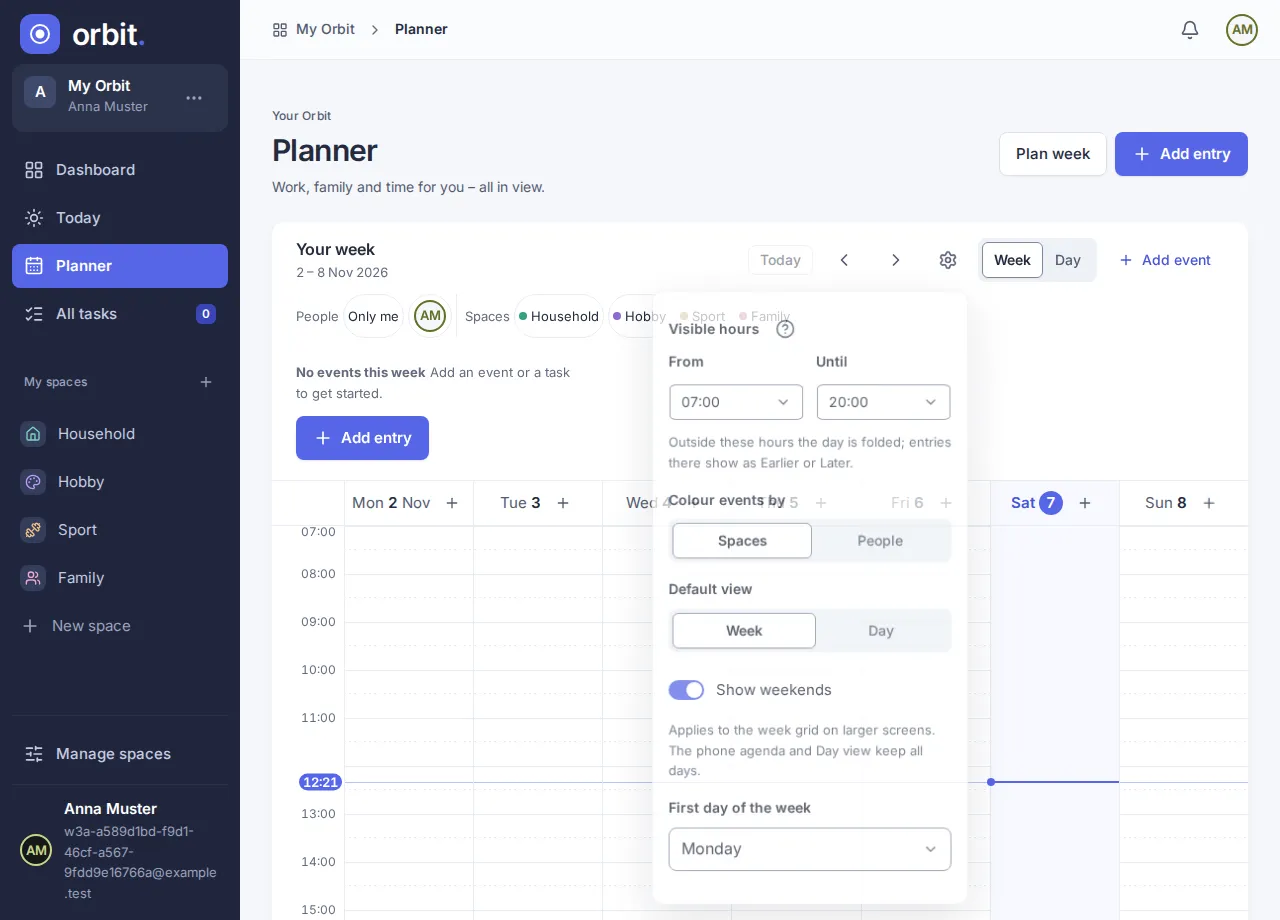
- Visible hours: From and Until set the hours the planner shows. Entries before or after them appear under Earlier and Later and can be opened there. Until is always later than From.
- Colour events by: Spaces (the default) or People.
- Default view: Week or Day for the Planner.
- Show weekends: see below.
- Spaces hidden in the planner lists the spaces shared with you. Choose Hide in planner to remove a space from your planner, All tasks, Dashboard and Today, or Show in planner to bring it back. This only changes your own planner, see Shared with me.
- Orbit name in the Account group renames your Orbit, see Orbits and people.
If saving fails, “Could not save your calendar view. Try again.” appears and the previous value comes back.
Appearance
Section titled “Appearance”Use these settings to adjust how Orbit looks.
On the Settings page, find Appearance and choose System, Light or Dark. System is the default and follows your device, including changes while Orbit is open. Light and Dark apply immediately and follow your account across devices and Orbits. The navy navigation stays dark in every appearance.
If saving fails, “Could not save your appearance. Try again.” appears and the previous appearance returns. Choose the option again to retry.
Orbit remembers the last appearance on this device so it can apply it when opening. On a new device, your device’s appearance may appear briefly before your account’s choice loads. This can also happen when browser storage is unavailable.
Calendar settings in the planner
Section titled “Calendar settings in the planner”On phones, the gear opens a sheet from the bottom. Scroll inside it to reach all options. Changes save immediately; “Saved” or an error stays visible at the bottom. Tap Done to close. On larger screens, the gear opens a popover.
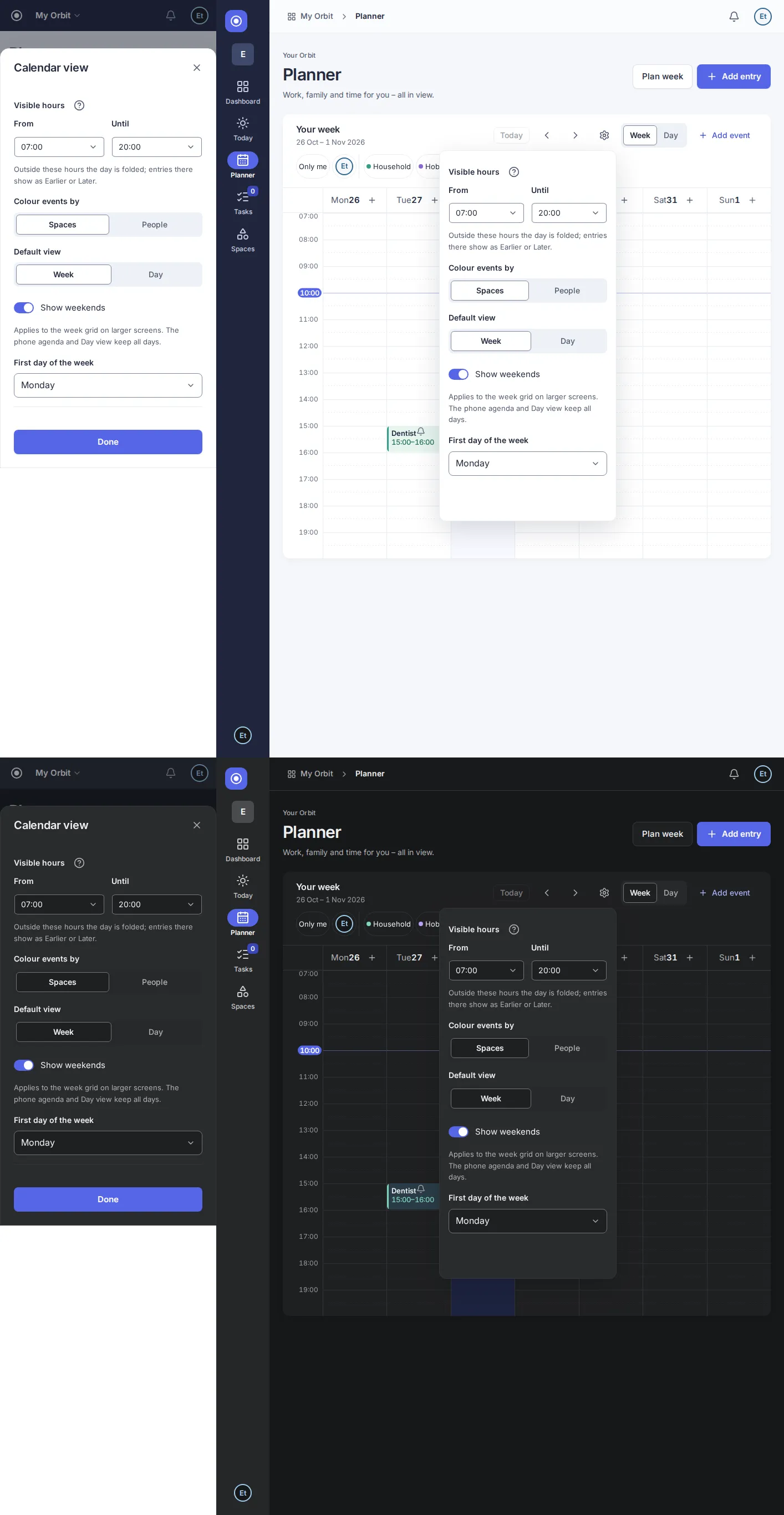
The gear button in the Planner opens the same calendar settings as the Settings page, plus First day of the week. Both are yours alone; they never change another person’s planner.
Connections
Section titled “Connections”In the Apps & services group:
- Connections: external calendars such as Outlook or iCal. Connecting them comes in a later version; imported events will then appear in the space you choose for each calendar. See Calendar sync.
Connections lists the planned sources iCal subscription, Outlook.com and Microsoft 365, each marked Later. There are no connection controls or credential fields yet.
Questions
Section titled “Questions”Where did App settings go? They are now part of Settings: Connections in Apps & services, the version in Help › About the app. Old bookmarks open the right group.
Why is there no Settings entry in the side bar? Your settings are in the menu and in the account menu.
How do I follow my device’s appearance again? Choose System in Settings › Appearance.
Where did Orbit settings › General go? The first day of the week and the time zone are now yours alone and sit in Settings › Week. Old bookmarks of the former Orbit settings no longer work.
Can I search the time zone list? The list currently has no search field. Scroll to your time zone and select it. You can change it again at any time.
Show weekends
Section titled “Show weekends”On the Settings page or in the planner’s Calendar settings, turn Show weekends off to show Monday to Friday in the week grid on a tablet or computer. The same choice applies to a space’s Events tab and follows you to other devices. The phone agenda and Day view still show Saturday and Sunday.
Where is my weekend? When weekends are hidden, a note below the grid counts entries visible only on the weekend after your filters. Events also shown on a weekday are not counted. Choose Show weekends in the note to restore all seven days. With no hidden entries, use the switch in Calendar settings instead.
Start page on phones
Section titled “Start page on phones”In Settings › Start page on phones, choose Today to open the Today page instead of the Dashboard when you open Orbit on a phone. Tablets and computers always open the Dashboard. The choice is saved at once and follows you to other devices.
Show hints again
Section titled “Show hints again”Orbit shows short tips once on some screens. When you close a tip it stays closed on all your devices. To see every tip again, open Settings › Hints and choose Show hints again. A message confirms it. This only affects you.
Version
Section titled “Version”Open Settings. Under Help › About the app,
Version identifies the app release and Build identifies the exact build.
The account menu also shows the version. When reporting a problem, include both
values. A build named dev means that an exact build identifier was unavailable.
The user guide shows its own version at the bottom of each page. Its build may differ from the app if they were published separately.
Version 0.1.0+production