Tasks
Tasks keep track of things you want to get done. You see only tasks in spaces you belong to.
All tasks
Section titled “All tasks”All tasks in the side bar (Tasks on a tablet or phone) lists every open task of your accessible spaces, including overdue tasks from earlier weeks and tasks without a date. The number beside it in the side bar counts the open tasks.
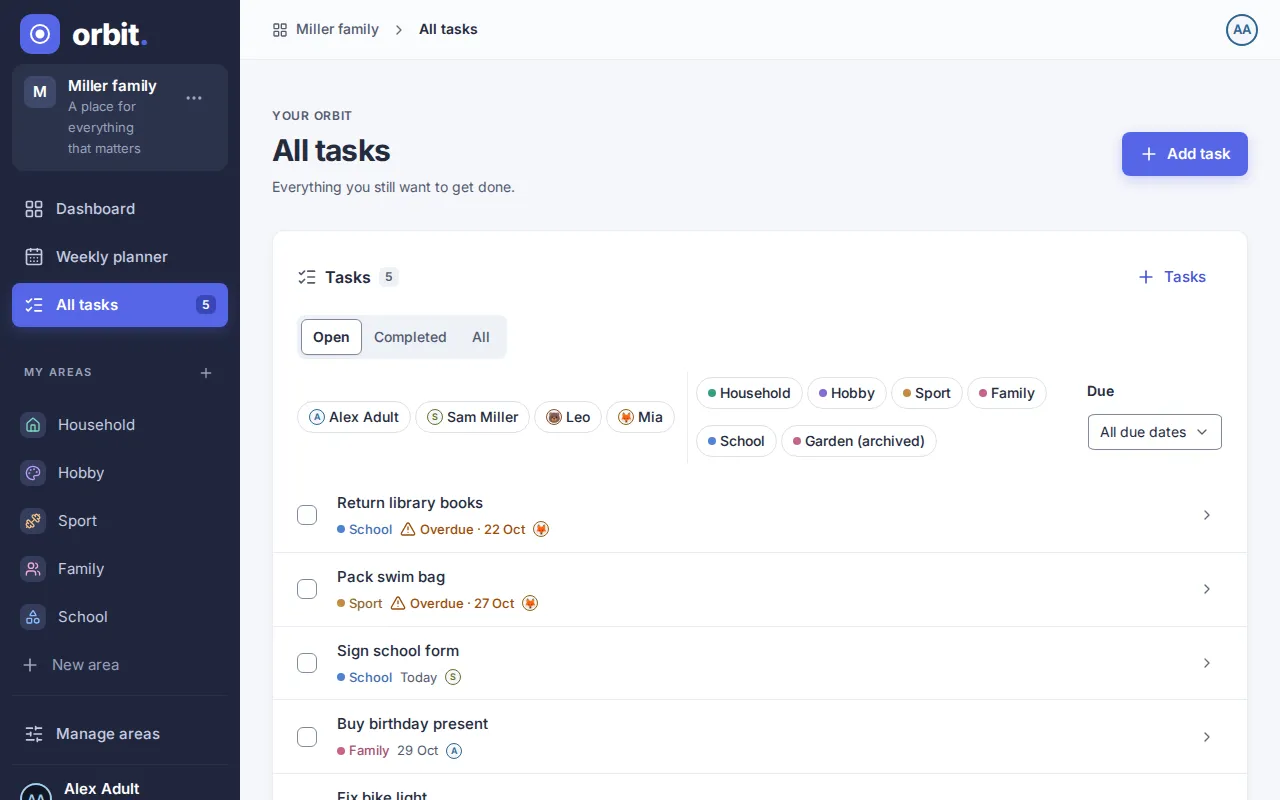
- Show: Open, Completed (the last 30 days) or All.
- People and Spaces: select chips to see only the tasks of these people or spaces. On a phone you pick spaces in a box by typing their name.
- Due: All due dates, Overdue, Today, This week, Later or No date.
When nothing is open, the list says so and offers Add task.
Overdue tasks show “Overdue” and their date. Tick a task off with its checkbox; it moves to Completed, and the count in the side bar follows. Clear the checkbox in Completed to reopen it.
Add and change tasks
Section titled “Add and change tasks”- Choose Add task on All tasks, or Add entry then New task (the round + on a phone).
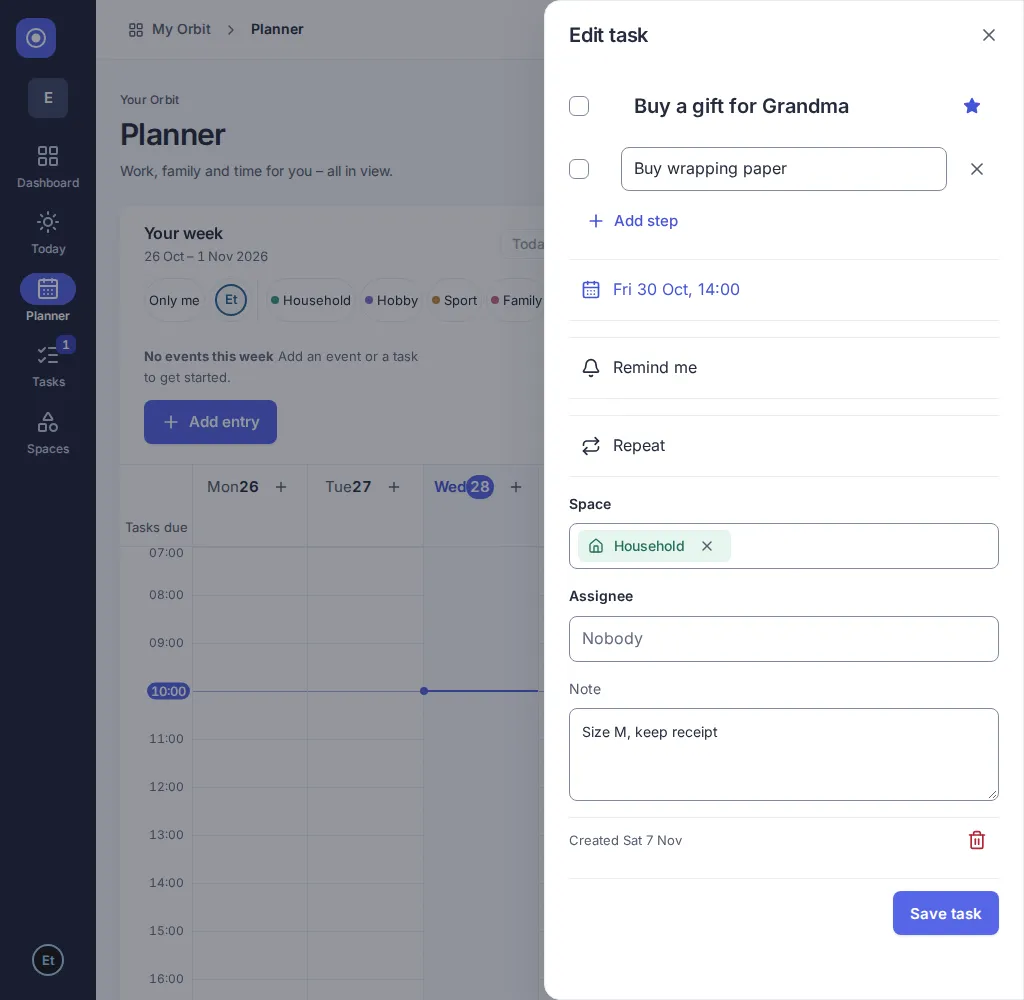
- Enter a Title of 1 to 120 characters. Use the Important star to mark the task.
- Choose Add step, enter a step title (1 to 120 characters), and repeat for up to 50 steps. Tick steps as you finish them. Use Remove step beside a step to remove it.
- Choose Add due date for Today, Tomorrow, Next week or Pick a date. Next week means the next Orbit week start. Pick a date opens a calendar with an optional time. Days before today in your Orbit’s time zone cannot be selected. Quick choices keep an existing time. Remove due date clears both date and time. Existing overdue dates can stay when you edit other fields.
- Choose an Space and Assignee by typing a few letters, or leave Nobody. Use × to remove a selection. A space is required to save.
- Optionally enter a Note of up to 2000 characters. Choose Save task to save all these changes together. Dated tasks appear on that day in the planner; others appear under No date.
- Open a task title to edit it. The header checkbox completes or reopens the task immediately, including before you save other changes. The title is struck through when complete.
- The footer shows when the task was created. Choose Delete task there and confirm with Confirm deletion, or choose Keep task to cancel.
Space owners and editors may change and complete any task in the space. Viewers may assign themselves or nobody, edit/delete only their own tasks, and complete/reopen tasks they created or are assigned to. A new assignee must belong to the space; children must also belong to the task’s space. Other tasks open as details with no save or delete button. If an adult assigns someone else to a teen’s task, the teen can keep that assignment or set it back to themselves or nobody.
Repeat a task
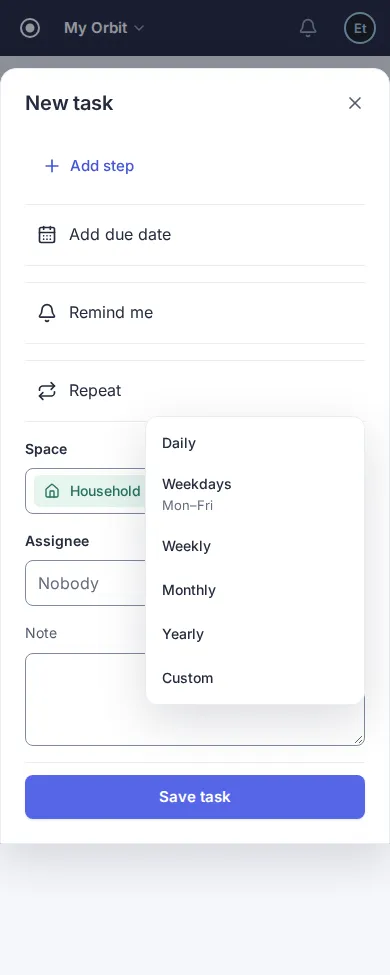
Section titled “Repeat a task”- Open a task and choose Repeat below the due date.
- Choose Daily, Weekdays (Monday–Friday), Weekly, Monthly, Yearly, or Custom. For Custom, enter a whole number from 1 to 99 and a unit. For weeks, select at least one weekday, then choose Apply.
- If the task has no due date, Orbit sets the first matching date on or after today. Choose Save task to keep the repeat.
Ticking off a repeating task creates its next open task. It keeps the title, space, assignee, star, note and due time. Steps start unchecked. A person who has left its space is no longer assigned. The next due date is counted from the day you tick the task off, in your Orbit’s time zone, and is always after today. Daily is tomorrow, every 3 days is in 3 days, weekly is in 7 days, monthly is the same day next month and yearly is the same day next year. With weekdays selected, it is the next selected weekday after today. An overdue daily task ticked off on 25 October is therefore next due on 26 October. You see the new task in All tasks and on its new date in the planner.
If a month is too short, Orbit uses its last day (31 January becomes 28 February). A yearly February 29 task uses February 28 in other years. Due times stay the same across clock changes.
To stop repeating, choose Never repeat and save. Remove due date also clears the repeat. There is no end date or repeat count, and quick add has no repeat option.
What happens if I undo completion? The next task is deleted only if you may change it and nobody has touched it since: it is still open, with no edits and no ticked steps. Otherwise undo is refused with the message that the next task was already edited, and nothing is deleted. Change the next task instead. Completing the original again creates one new next task. There is only ever one open task.
Can I change a repeat? If you can edit the task, choose another repeat or due date and save. The new date is the next due date until you tick it off. Completing a task assigned to you does not grant permission to edit someone else’s repeat.
Questions
Section titled “Questions”Why are steps or the star disabled? You may change only tasks allowed by your role.
Where is a completed task? On All tasks under Completed. In the planner it stays on its day or under No date.
Why is an assignee missing? People who left the Orbit are no longer shown as assigned.
Reload to see another person’s changes.
Why could my changes not be saved? If a step was removed while you were editing, the task has changed. Reload the page and apply your changes again.
If the next task was moved to a space you cannot access, undo is refused and the task stays there.
An entry can be moved only to another space of the same Orbit. A move to a space of another Orbit is refused with a message and nothing changes.
Shared entries
Section titled “Shared entries”Entries of spaces that other people have shared with you appear here like your own, with their space colour. What you can do follows your role in that space: owners and editors edit, move and complete every entry; viewers open entries read-only, change only entries they created and complete only tasks they created or that are assigned to them. Shared spaces appear in your own Orbit. If access was removed, the entries disappear when the page next loads.
Shared spaces appear in the space filter. Selecting several spaces shows any of them; a person filter further narrows those results. Only me also matches shared tasks assigned to you. Hide in planner on the settings page hides the space’s entries from the planner, All tasks and Dashboard. Explicitly select that space in the planner or All tasks filter to reveal it. New entries still use your current Orbit’s spaces.
Version 0.1.0+production