Orbits and people
An Orbit is your own place for everything that matters, for example your household. Each Orbit keeps its data separate. You see only spaces you belong to. New spaces are private to their creator until the creator invites other people.
Your Orbit
Section titled “Your Orbit”Every person has exactly one Orbit. It is created when you sign up, with your name and the four spaces Household, Hobby, Sport and Family, which you own. In the navigation it is called My Orbit, with your name below it. There is nothing to create and nothing to switch: other people’s spaces that are shared with you appear next to your own.
Sign up
Section titled “Sign up”- Open Orbit and, on the sign-in page, choose Sign up. If registration is not open yet, the page says so and you need an invitation.
- Enter your name, your e-mail address and a password with at least 8 characters, then choose Create account.
- Your Orbit opens on the planner, with your four spaces in the navigation.
The password rule is shown under the field, and a password that is too short is reported next to the field. If an account with your e-mail address exists already, the e-mail field says so; sign in instead.
Rename your Orbit
Section titled “Rename your Orbit”Your own settings (language, first day of the week, time zone and more) are on My Orbit › Settings, see Settings. Open the menu (the three-dot button beside My Orbit in the side bar, the Orbit tile on a tablet, or My Orbit at the top on a phone) to reach Settings and Spaces.
- Open Settings and scroll to Orbit name.
- Edit the name (1 to 80 characters).
- Choose Save. “Orbit saved” confirms it. The navigation always says My Orbit.
You rename your own Orbit; nobody else can.
Invite people
Section titled “Invite people”Open a space, choose Settings and find the card People. As a space owner you can invite someone there, whether or not the space uses the Family module. An invitation shares only that space, never your Orbit. Enter the Email, choose Adult or Teen and a Role; a teen is always a viewer, even if you pick a higher role. An e-mail is sent; you can also copy and share the link. The person decides to accept or decline. Open invitations show in the same card. A declined invitation shows as Declined without a reason; choose Remove to clear it.
Accept an invitation
Section titled “Accept an invitation”Open the link you received and follow the steps of Invitations: create an account or accept with your account, or decline. You always stay in your own Orbit.
People of a space
Section titled “People of a space”Roles exist only per space. Open a space, choose Settings and find the card People. Only space owners see it.
- The list shows every adult, teen and child profile of the space with their role. “(you)” marks your own row.
- Every row has the same layout on a phone and a computer: avatar and name on the left, the role list and the … menu on the right. To change a role, choose Owner, Editor or Viewer in the role list. The change applies at once.
- To remove a person, open the … menu in their row, choose Remove and confirm. The person loses access to this space only; their account, their Orbit and their other spaces stay.
A space always has at least one owner. The last owner’s role list and Remove menu item are disabled, and Orbit rejects the change with a message. A teen account can be a viewer only in a space that belongs to someone else’s Orbit; the other roles are not offered for it. Child profiles have a fixed role and are managed in the Family tab.
Children
Section titled “Children”A child belongs to the spaces it is added to. Children have no login or password. You create a child in the Family tab of a space, see Create a child in a space.
- Open the Family tab of a space. You see its children with the role Child; adults are listed there for reading only and are managed in the People card of the space settings.
- To edit a profile, open the three-dot menu beside the child’s name, choose Edit child, change the display name (1 to 40 characters), the profile colour or the picture and select Save child. For the picture, pick an animal, or select Upload a picture and choose a JPEG, PNG or WebP photo of up to 5 MB; it is saved at once, cropped to a square, and hidden data such as the location is removed. Remove picture goes back to the initials. You see this menu if you own the space.
Editors and viewers of a space see its children and cannot change them. People who are in none of a child’s spaces do not see the child at all.
Can my child sign in?
Section titled “Can my child sign in?”No. A child profile represents a family member without an account. A child’s own view on the family hub is not available yet.
Which child details can I store?
Section titled “Which child details can I store?”Only a display name, a profile colour and an optional picture (an animal or a photo that Orbit crops to a square and strips of hidden data). Only people who share a space with the child see the picture. Do not put private details such as birthdays or school information in the name.
Limits and FAQ
Section titled “Limits and FAQ”Why does the name fail? Enter at least one non-space character and at most 80 characters.
What if saving fails? Check your connection and try again. A permission error means your account cannot make this change. If you are asked to reload the page, your change was saved; reload to see it.
Why does a link fail? Expired, already used and revoked links cannot be accepted. Ask a space owner for a new invitation. If an account already exists, sign in instead of creating one. If the wrong account is signed in, sign out and use the invited email.
Can I leave or delete an Orbit? These controls are not available yet.
Can I have more than one Orbit? No. Everything you share with others lives in spaces, and the spaces shared with you appear in your own Orbit.
Roles in a space
Section titled “Roles in a space”Access to a space requires membership of that space. Your role there determines what you can do. Roles exist only per space; there are no Orbit roles.
- Owner: manage the space’s modules, people and settings, and create, change and delete all entries.
- Editor: create, change and delete entries, but cannot change the space itself or its people.
- Viewer: see the space, read entries and tick off tasks assigned to you. A viewer who created an entry can also change or delete it. Tasks can be assigned only to yourself or nobody.
- Child profile: no login; the profile belongs to its selected space and can be assigned tasks only in spaces it belongs to. A child’s own view on the family hub is not available yet.
- Teen account: a teen has their own Orbit and can create their own spaces. In spaces shared with them, a teen is at most a viewer, assigns tasks only to themselves and changes only entries they created. A teen does not invite people.
New spaces belong only to their creator. Removing a person from a space removes only their access to that space.
In the space settings, the first time you open them, a short hint explains the roles; choose Got it to dismiss it for good. The round ? beside People repeats the roles in a few sentences, and a second ? beside Invite a person explains invitations. Only owners see the settings and the invite form, so only owners see these two.
Turn a teen into an adult
Section titled “Turn a teen into an adult”When a teen grows up, an owner of a space that uses the Family module can turn the account into an adult account:
- Open the space’s Settings and find the card People.
- Open the … menu in the teen’s row, choose Make adult and confirm. The confirmation says that the change applies to the whole account and cannot be undone here.
The teen cannot do this themselves, and owners of spaces without the Family module cannot do it either. Afterwards the person can be an editor or owner in shared spaces.
Invite people to a space
Section titled “Invite people to a space”- Open the space’s Settings and find the card People. Only owners see it; a teen account does not invite people.
- Under Invite a person, enter the Email.
- Choose the Role: Owner, Editor or Viewer, or Teen for a teen account, which is always a viewer.
- Choose Create invitation. A confirmation shows that the e-mail was sent. If sending fails, a warning appears; choose Copy link and share it with the invited person instead. You can also copy the link after a successful send. The person must use the invited e-mail address. The link expires after 48 hours.
- If copying fails, select the text in Invitation link and copy it manually.
The person opens the link, signs in or creates an account, and joins only this space. A teen account remains a viewer even when an invitation offers a higher role. The person can also decline; the row then shows Declined, and you can remove it. Later spaces are not shared automatically. To cancel a pending invitation, choose Revoke invitation in its row and confirm. Only owners can create and revoke invitations.
Create a child in a space
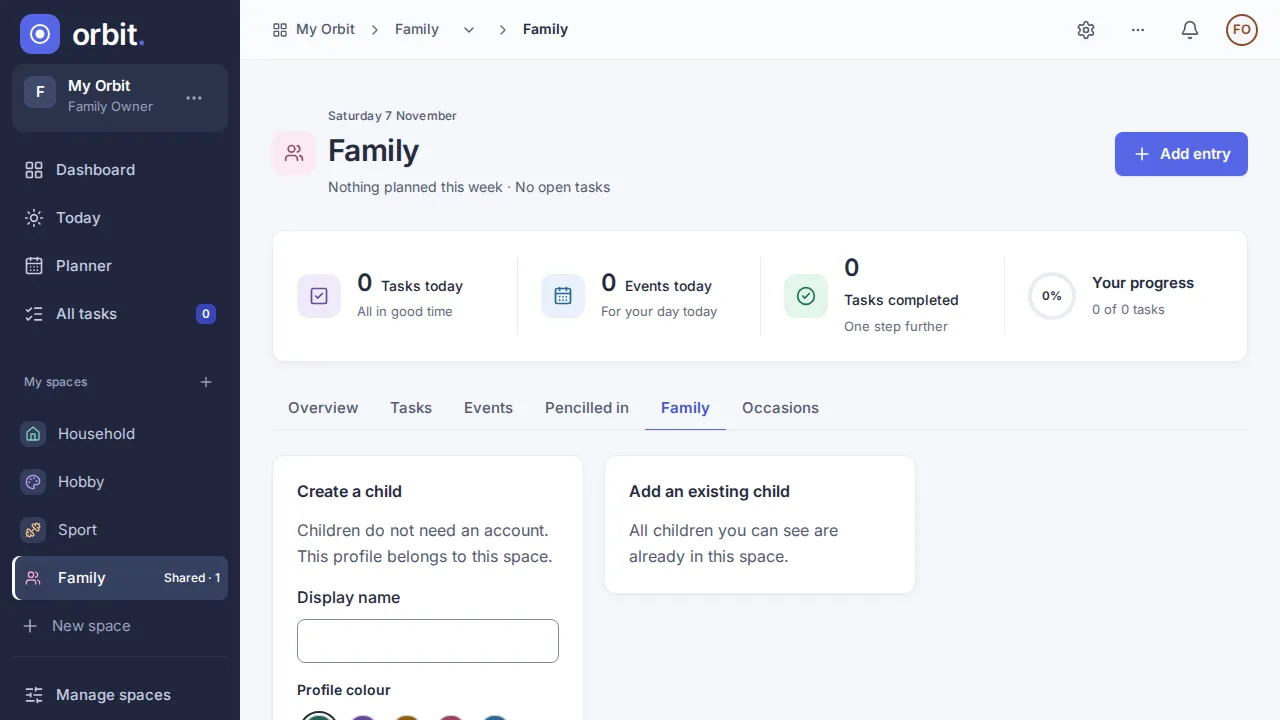
Section titled “Create a child in a space”- Open the space’s Family tab as an owner.
- In Create a child, enter a name with 1 to 40 characters and choose a colour.
- Choose Create a child. The child appears in this space’s people list only.
Children do not get an account or login. They can be assigned tasks or added to events only in spaces they belong to. To use a child in another space, add the existing child there. The family hub shows today and the week of its spaces; a child’s own view on it is not available yet.
Add an existing child to a space
Section titled “Add an existing child to a space”- Open the space’s Family tab as an owner.
- In Add an existing child, choose a child from the list and select Add to this space.
- The child appears in this space’s people list. It can now be assigned tasks and added to events and recurring events of this space.
The list offers the children you can already see: children who belong to a space you are in. Children already in this space are not listed. If the list is empty, every child you can see is already here. The child keeps its place in all other spaces.
Remove a child from a space
Section titled “Remove a child from a space”- Open the space’s Family tab as an owner.
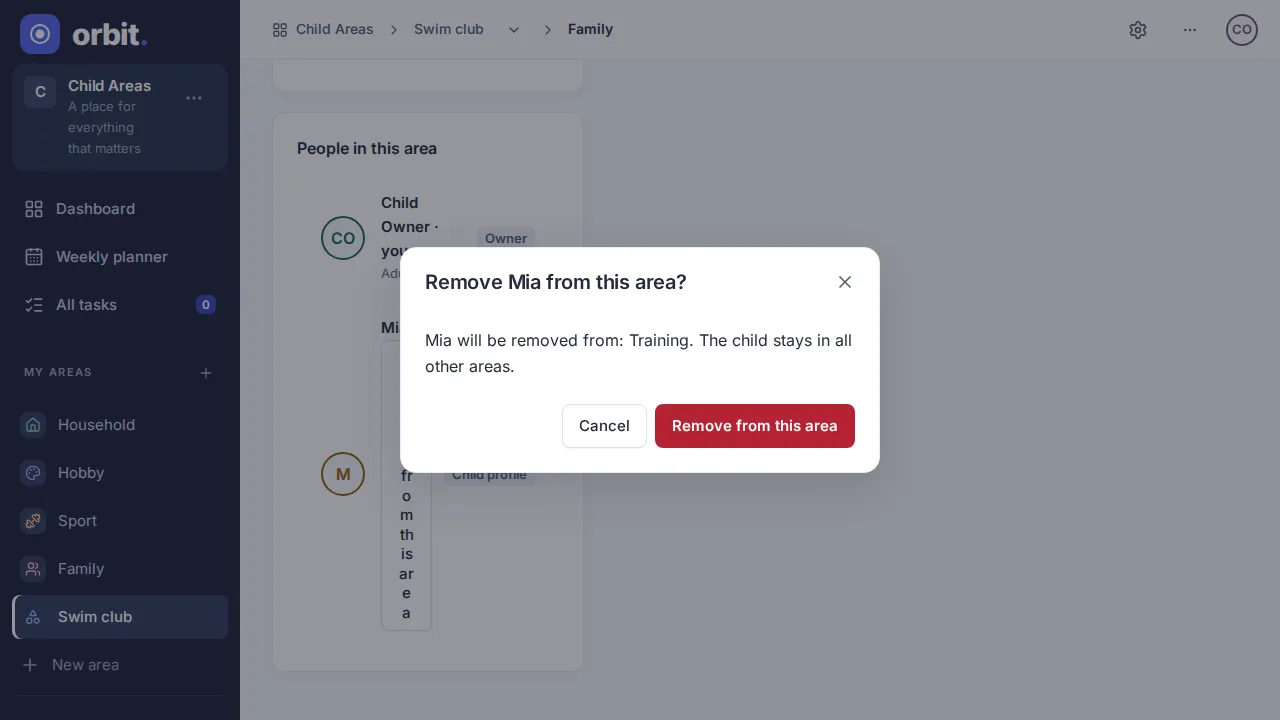
- Choose Remove from this space in the child’s row.
- The confirmation names the child and lists the events, recurring events and tasks of this space that include the child. Choose Remove from this space to confirm or Cancel to keep everything.
A child cannot be removed from its only space. In that case the dialog offers Delete child instead (only for an owner of the space): it says this is the child’s only space and lists the events, recurring events and tasks that include the child. Choose Delete child to delete the profile permanently; the events and tasks stay. If events or tasks changed while the confirmation was open, nothing is removed; close it and try again.
On confirmation the child leaves those events and recurring events and is no longer assigned to those tasks. The events and tasks themselves stay. The child stays in its other spaces and keeps its assignments there. Only owners can add or remove children, and not in archived spaces.
Family tab
Section titled “Family tab”The Family tab lists this space’s adults, teens and children with their roles. Your row is marked as yours. Adults are shown for reading only; owners manage them in the People card of the space settings. Owners create, add and remove children here. Editors and viewers see only the list. Event, series and task forms update their people choices when you switch the space.
Until a child profile exists, the tab says so and offers Add a child (owners; it moves you to the name field). The ? beside People in this space explains the family hub.
Why can I not see a space? Its owner must invite you.
A space invitation can be accepted only while the inviting person still owns the space and the space is not archived. A message explains what needs to change if joining fails. Ask a current owner for help.
Archived spaces must be restored before inviting people, adding or removing children or revoking invitations.
Children already assigned to existing tasks, events or recurring events remain in those spaces and keep their assignments when you edit a title.
Who do I see?
Section titled “Who do I see?”You see people who share at least one space with you, and always yourself. Child profiles appear only when they share a space with you. Without a space, you see only yourself. Nobody sees more than the spaces they are in.
See Shared with me for spaces shared from other Orbits.
Version 0.1.0+production