Week and Today
The Planner shows your Orbit’s week. Open it with Planner in the side bar, the bottom bar or the rail, or with Open planner on the Dashboard. The card “Your week” shows the date range, for example “26 Oct – 1 Nov 2026”. Weeks start on Monday unless you choose another first weekday in your settings. On a tablet or computer the week is a calendar grid with one column per day; on a phone it is a list of days.
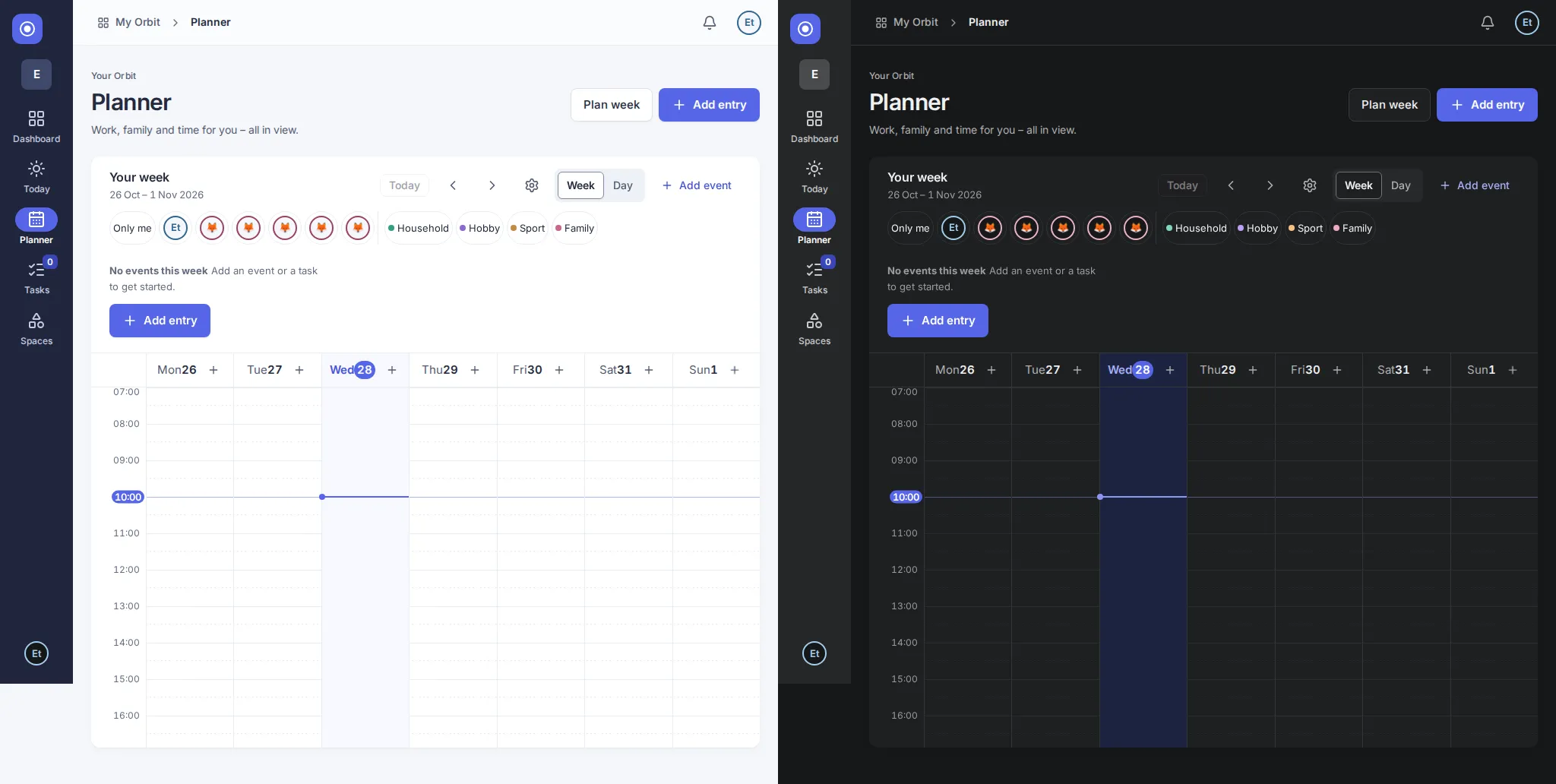
The current week follows the time zone in your settings (Europe/Zurich until you change it). Dates follow your chosen language and your browser’s regional format where available. An empty week shows “No events this week” (in the Day view “No events on this day”), with a sentence that says what to add and an Add entry button below it (people who may only view a space see the sentence without the button). The first time you open the planner, a short hint explains it; choose Got it and it does not come back, on any device. For today’s overview, see the Dashboard in Getting started.
Read the week on a tablet or computer
Section titled “Read the week on a tablet or computer”- Hours run down the left edge. The grid shows only your visible hours (07:00 to 20:00 unless you change it, see Calendar settings). Entries that start before or end after them are not lost: a row Earlier (n) above and Later (n) below the grid counts them. Choose the row to show the whole day; choose Hide earlier hours or Hide later hours to fold it again. This is per view and is not saved. If today is in the shown week and the current time is later than the first visible hours, the grid opens one hour before now instead.
- Day headings show the weekday and day number. Today is highlighted and a line marks the current time; it moves on every minute.
- All day, above the hours, shows all-day and multi-day events as bars across their days. Timed events of 24 hours or longer also appear here.
- Tasks due shows each day’s tasks with a checkbox. More than three tasks collapse into “+N more tasks”; choose it to show all, and Fewer tasks to collapse them again.
- Appointments are blocks from their start to their end time, in the colour of their space (or of the first participant, if you colour events by people). Appointments at the same time stand side by side. If a day has too many at once, a “+N more events” chip opens a list of that day’s entries.
- An appointment that crosses midnight appears on both days.
Select an appointment or a task to open its details in a panel at the side. Keyboard users can move between entries with Tab and to the neighbouring day with the left and right arrow keys.
Read the week on a phone
Section titled “Read the week on a phone”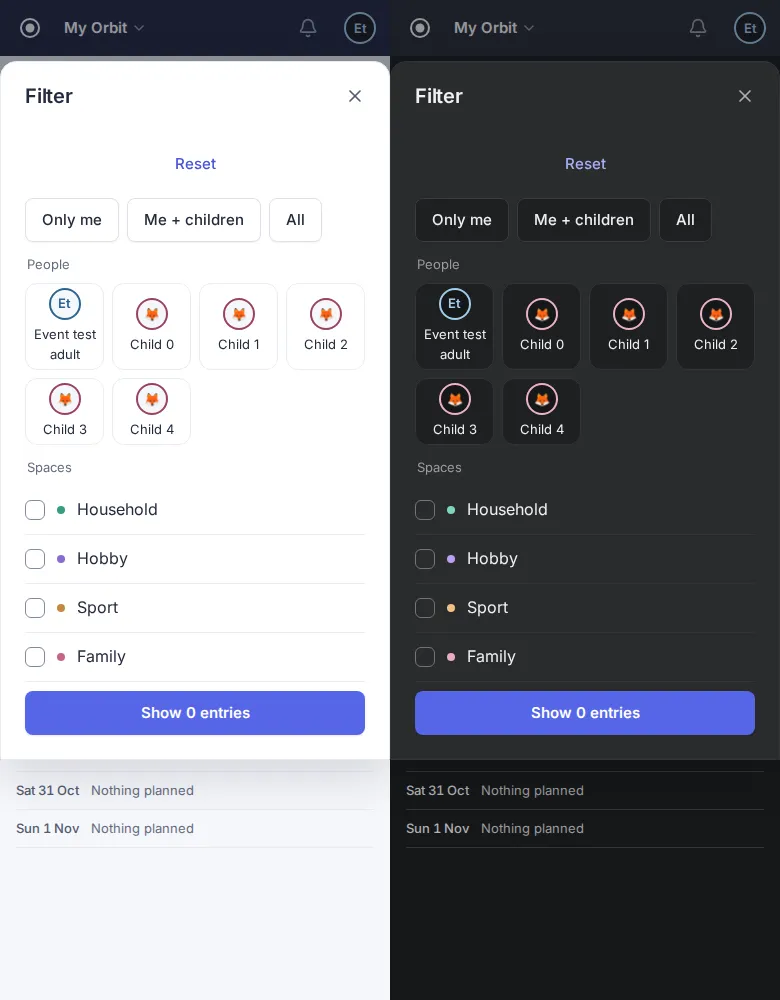
- A day strip at the top of the card shows the seven days. A dot marks days with entries. Tap a day to jump to it.
- Below, each day lists its all-day events, then its appointments by start time, then its tasks. Days without entries show “Nothing planned”.
- Choose Day in the Week | Day switch to see one day as a calendar grid with hours. It shows only your visible hours; Earlier (n) and Later (n) work as in the week. The day heading, all-day events and tasks stay below the top bar. The view opens at your first visible hour (07:00 by default), or one hour before now if the current time would be off screen. Scroll back up for the filters and navigation. Tap an empty time slot to add an entry; times snap to the quarter hour.
Select an entry to open its details in a sheet from the bottom of the screen.
Move between weeks and days
Section titled “Move between weeks and days”- Choose the arrow buttons beside Today to move one week back or forward (one day in the Day view).
- Choose Today to return to the current week or day. It is disabled when you are already there.
- Choose Week or Day to switch the view. The Day view opens on the day you selected in the day strip, otherwise on today if it is in the shown week, otherwise on the first day. In the Day view the path at the top also names the day.
- Use your browser’s Back or Forward button to revisit a week. You can bookmark a week’s or a day’s address. An invalid date in a bookmarked address simply shows the current week.
Calendar settings
Section titled “Calendar settings”On phones, the gear opens a sheet from the bottom. Scroll inside it to reach all options. Changes save immediately; “Saved” or an error stays visible at the bottom. The planner page keeps its position while the settings sheet is open. Tap Done to close. On larger screens, the gear opens a popover.
See phone and desktop examples.
The gear button in the card header opens Calendar settings. Every change is saved at once for your account and follows you to your other devices; “Saved” confirms it.
- Visible hours (the ? next to it explains them): choose From and Until. The planner grids show only that span. Entries outside it appear under Earlier or Later until you open them.
- Colour events by: Spaces (the default) or People.
- Default view: Week or Day. With Day, the planner opens on today’s day view.
- First day of the week: choose the weekday here or in Settings › Week; it is saved at once and only for you. Someone who shares a space with you can start their week on another day.
The same settings, and your time zone, are also on the Settings page, see Settings.
Filter the week
Section titled “Filter the week”On a phone, choose Filter in the card header. Its number shows how many people and spaces are selected; Active: chips below show your choices.
- Open Filter. Choose Only me, Me + children or All, or toggle people in the avatar grid. The children preset appears only when children are available.
- Select spaces in the checklist. Archived spaces are marked “(archived)”. Space calendars already fix the space and hide this checklist. Presets keep your space selection.
- Choose Show N entries to apply. The number updates as you change the draft and includes events, recurring entries and tasks, including tasks without a date.
- Reset clears the draft. Closing the sheet without applying discards your changes.
On a computer, avatar buttons and space chips update the planner immediately. Only me selects your account; hover an avatar for its name. +N opens the remaining people. Reset clears all selections and appears only while filters are active.
Several people match any selected participant or task assignee; several spaces match any selected space. An entry must match both dimensions. No matches shows “Nothing matches the filters”; you can still apply a selection with zero entries.
Filters remain in the page address across week/day navigation, so browser Back restores previous choices. They are not saved to your account. Unknown IDs are ignored. If options cannot load, reload to try again; the week remains available.
Add from the week
Section titled “Add from the week”Choose Add entry (the round + button on a phone) and then New event, New series or New task to open the full form. In the Day view, or after tapping a day in the day strip, the form starts on that day. Add event in the card header opens the quick entry below for today (or the shown day) at the next full hour.
For a quick entry:
- On a tablet or computer, click an empty spot in the grid. The time snaps to the quarter hour. Alternatively, choose + in a day’s heading.
- The panel “Add to Thu 29 Oct at 14:00” shows Event and Task. Event is already selected.
- Enter a title. Check the Starts and Ends date and time; they are filled from the spot you clicked, and the event lasts one hour. Changing the start moves the end along.
- Optionally choose the Space and add Participants, then choose Save or press Enter.
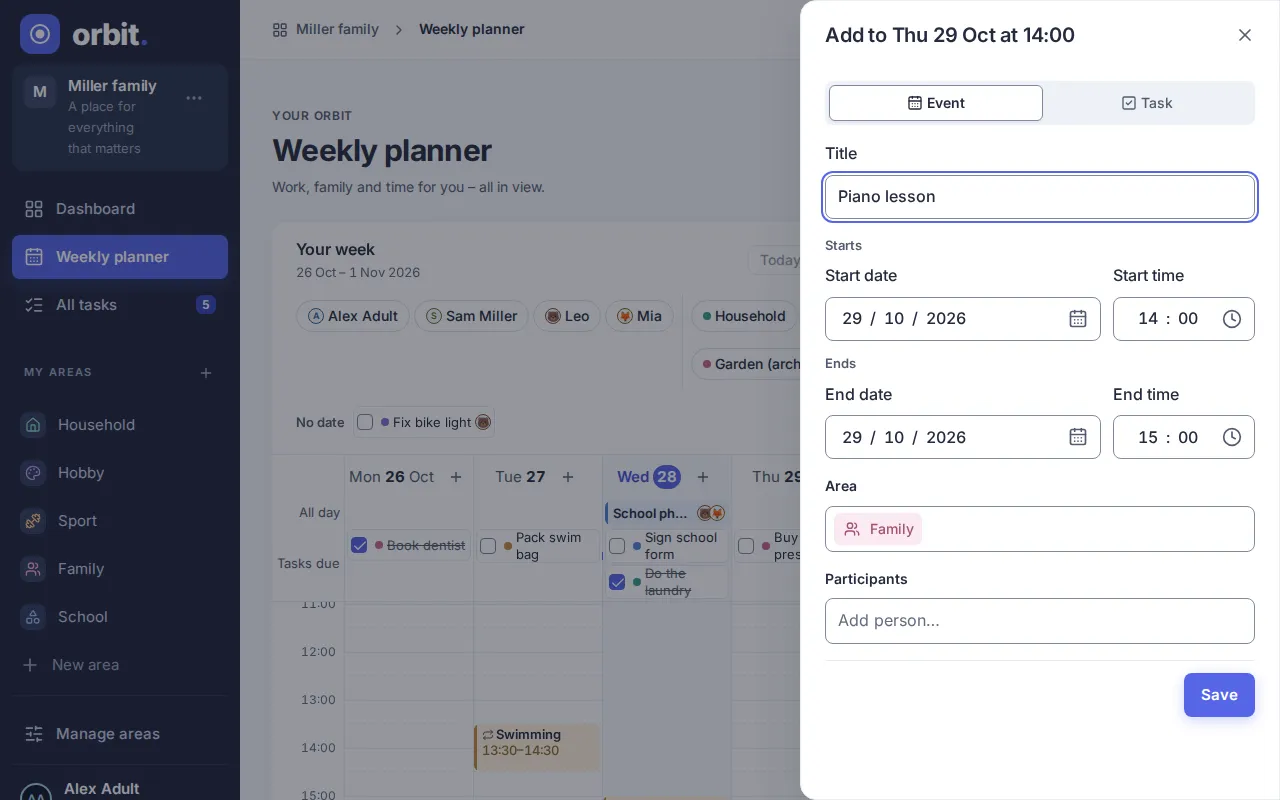
The panel focuses the title. A blank title shows “Enter a title”; an end before the start shows “The end must be after the start.”. Escape closes without saving; reopening starts empty. With one space selected in the filters, that space is preselected, otherwise Family; selected people become the participants. Archived spaces are hidden; if Family is archived, the first active space is selected instead.
With Task, the panel shows the title, Space, Assignee and Due date (the chosen day). Tasks start with nobody assigned. Teens can assign only themselves or nobody. From the + in a day’s heading, events today start at the next full hour in your time zone; other days use 09:00. From 23:00 onward, today’s default is 23:00–00:00. Active filters can hide a newly added item. Use the full forms for series, all-day events, location, notes or due times.
Use Today, Tomorrow or Next week below the due date to choose it with one tap. Today uses the date in your time zone. Next week means the first day of the next week according to your week start. Choosing a date keeps any due time you already entered.
Choosing dates, times, people and spaces
Section titled “Choosing dates, times, people and spaces”- Dates: type the day, month and year, or choose the calendar button and pick a day. The calendar starts on your Orbit’s first weekday; arrow keys move between days, Enter picks and Escape closes.
- Times: type the hours and minutes, or choose the clock button for a list in 15-minute steps. For the end time the list shows the duration next to each time.
- People and spaces: type a few letters and pick from the suggestions. A chosen person or space appears as a tag; remove it with its × or with Backspace.
Tasks in the week
Section titled “Tasks in the week”Dated tasks appear on their day: in Tasks due in the grid, after the day’s appointments on a phone. Undated tasks appear above the week under No date. Each task shows its space colour and, where there is room, the assignee and due time. Use its checkbox to complete or reopen it. Select its title to open the details, which also show who completed it and when. For all open tasks, including overdue ones from earlier weeks, open All tasks; see Spaces and tasks. Due dates stay on the same calendar day in every time zone.
See Events and series for adding, changing and deleting appointments. All-day events stay on their calendar dates in every time zone. The current week uses the time zone in your settings.
Plan the next week
Section titled “Plan the next week”On your planning day (Sunday until you change it in Settings) the Dashboard shows a card Plan next week with a short sentence such as “Plan 10–16 Nov” and one button. The card stays until the planned week starts, and disappears once you have confirmed that week. Teen accounts and people who can only view their spaces do not see it. Plan week in the header of the Planner is always there for adults who can add entries. Both open the planning page. For now it only says that planning opens there soon; the planning screen itself follows.
Frequently asked questions
Section titled “Frequently asked questions”Where do I change the first weekday?
In your own settings or in the planner’s gear; it applies to you only, see Settings.
Why does an open week still show the previous first weekday?
Reload the planner to apply a change saved by someone else.
Why does an appointment show only its start or no time?
Short appointments and narrow columns have little room. Select the appointment to see all details, or switch to the Day view for more space.
Planner: available from milestone M1b; calendar settings and quick add with times from M1e.
Show weekends
Section titled “Show weekends”On the Settings page or in the planner’s Calendar settings, turn Show weekends off to show Monday to Friday in the week grid on a tablet or computer. The same choice applies to a space’s Events tab and follows you to other devices. The phone agenda and Day view still show Saturday and Sunday.
Where is my weekend? When weekends are hidden, a note below the grid counts entries visible only on the weekend after your filters. Events also shown on a weekday are not counted. Choose Show weekends in the note to restore all seven days. With no hidden entries, use the switch in Calendar settings instead.
Shared entries
Section titled “Shared entries”Entries of spaces that other people have shared with you appear here like your own, with their space colour. What you can do follows your role in that space: owners and editors edit, move and complete every entry; viewers open entries read-only, change only entries they created and complete only tasks they created or that are assigned to them. Shared spaces appear in your own Orbit. If access was removed, the entries disappear when the page next loads.
Shared spaces appear in the space filter. Selecting several spaces shows any of them; a person filter further narrows those results. Only me also matches shared tasks assigned to you. Hide in planner on the settings page hides the space’s entries from the planner, All tasks and Dashboard. Explicitly select that space in the planner or All tasks filter to reveal it. New entries still use your current Orbit’s spaces.
Yearly occasions such as “Lena turns 9” show on their day as a short note without a time. School and public holidays show as a quiet note too; see School and public holidays.
Version 0.1.0+production