Getting started
Your first week with Orbit:
- Sign up (or sign in) and open your Orbit, your own place for everything that matters. It is created when you sign up.
- Check your spaces (Household, Hobby, Sport and Family to start with) and add your own.
- Invite the other adults and teens by e-mail, and add your children as profiles without login.
- Add the first events and tasks from the Dashboard or the Planner.
- Later: pair the kitchen tablet as the family hub, let Orbit read a school timetable and propose the coming week.
Available from milestone M0. The navigation described here is available from milestone M1e.
Signing in
Section titled “Signing in”You need an account. If registration is open, choose Sign up on the sign-in page, enter your name, e-mail address and a password with at least 8 characters, and choose Create account; your Orbit with the spaces Household, Hobby, Sport and Family is created and the planner opens. If registration is not open yet, ask the owner of a space for an invitation. See Orbits and people.
- Open Orbit. If you are not signed in, the sign-in screen appears.
- Enter your e-mail address and password, then choose Sign in. Stay signed in is checked, so on your phone or your own computer you stay signed in for 30 days and every visit extends that. On a computer that is not yours, uncheck it: you are then signed out when you close the browser, and in any case after one day.
- After signing in, the Dashboard of your Orbit opens. To end your session, especially on a shared device, open the account menu and choose Sign out.
The cursor is already in the first field of the sign-in and sign-up forms. On sign-up the password rule (at least 8 characters) is shown under the field and the field tells you as soon as you leave it with a password that is too short; the eye button next to it shows or hides what you typed. If an account with your e-mail address exists already, the e-mail field says so; sign in instead.
If you see “E-mail or password is wrong”, check both fields and try again. The message is the same for an unknown address and a wrong password. If Orbit asks you to confirm your e-mail address first, choose Resend confirmation mail and open the link in the mail. If sign-in is temporarily unavailable, try again later. Ask the person who invited you if you do not have an account. If you forgot your password, choose Forgot password? under the password field; see Forgot your password. If you turned on two-factor sign-in, Orbit asks for a code from your authenticator app after the password.
The Dashboard
Section titled “The Dashboard”The Dashboard is your start page. It greets you by name and shows what matters today.
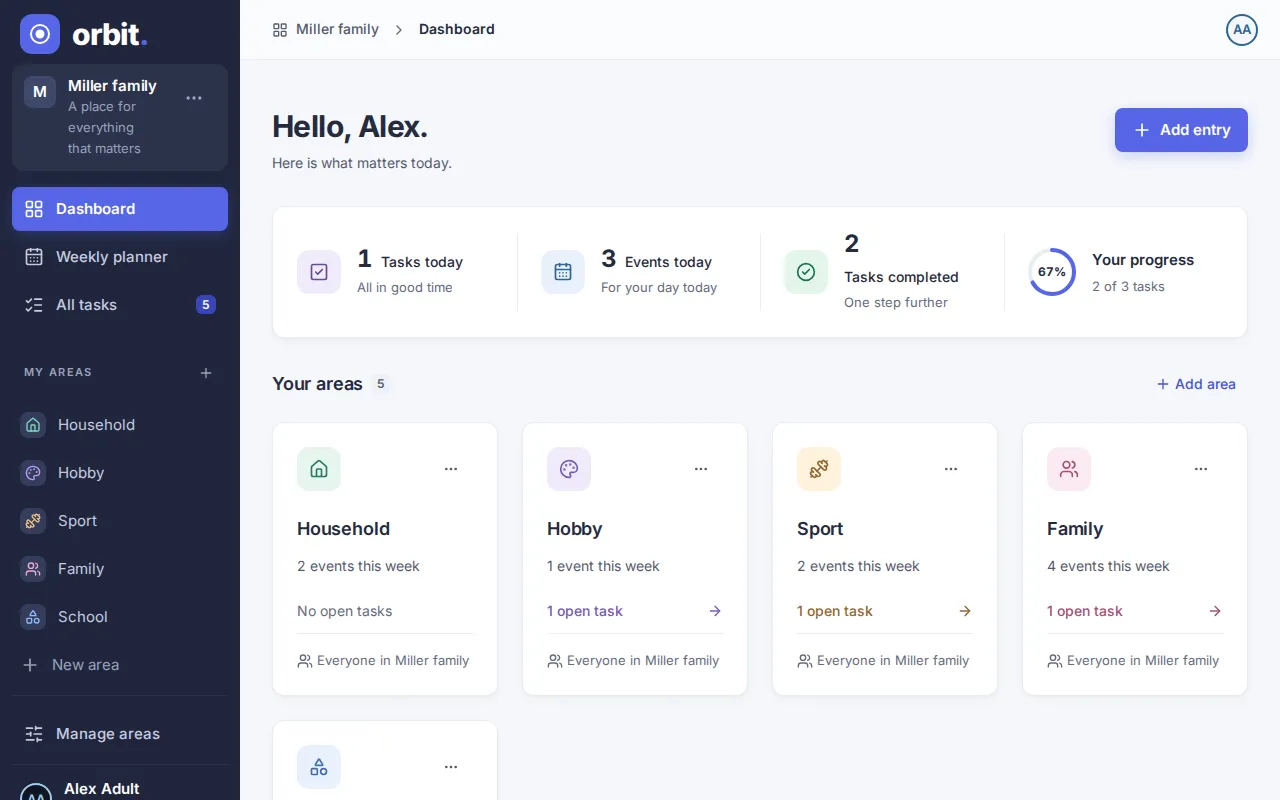
- Today at a glance: tasks due today, events today, tasks completed today and Your progress as a ring with the share of today’s tasks that are done.
- Your spaces: one card per space with its open tasks and this week’s events. Choose a card to open the space. Add space creates a new one.
- Your focus: the first six open tasks of your Orbit by due date, overdue ones first. Switch between Open, Completed (today) and All, tick a task off with its checkbox or select it to open its details. All tasks below the list opens the full list.
- Today: a strip with the days of this week and the entries of the selected day. Choose Open planner for the whole week.
- Add entry at the top right (the round + button on a phone) creates an event, a series or a task.
Finding your way around
Section titled “Finding your way around”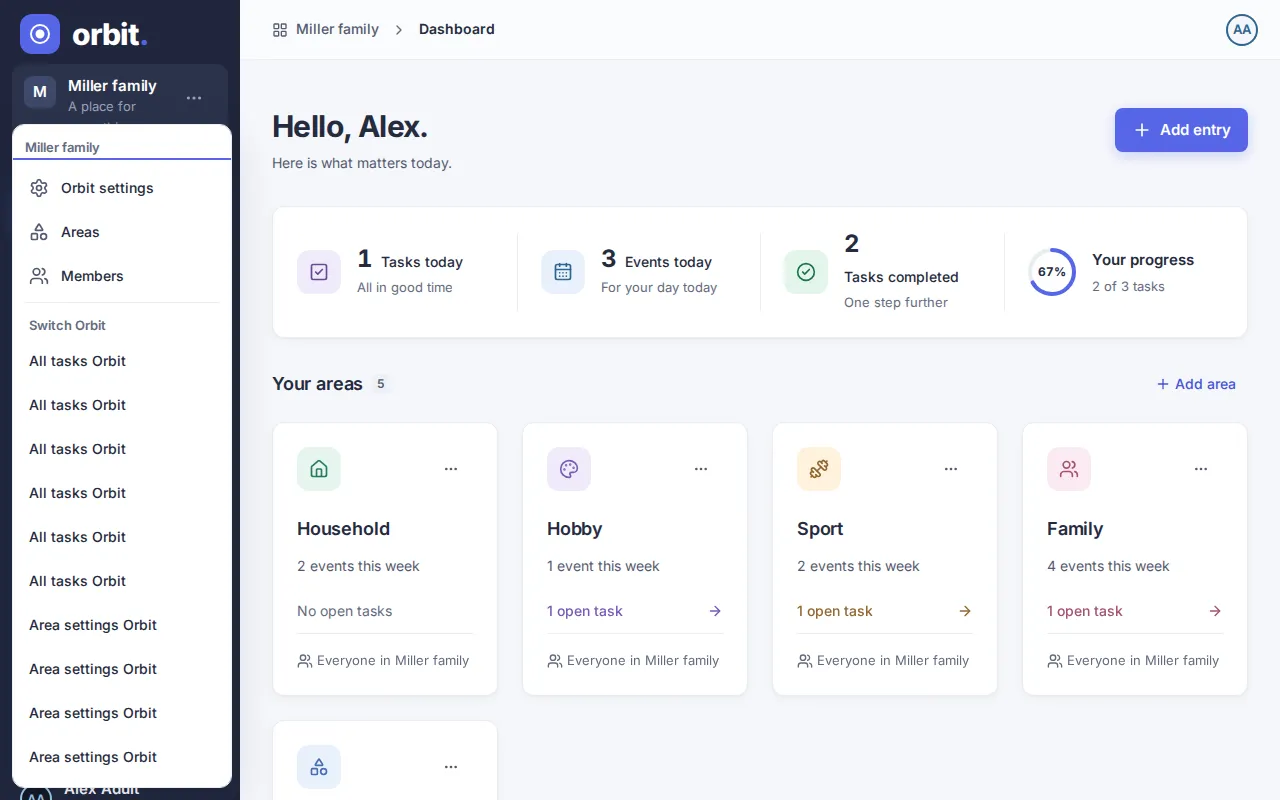
On a computer a dark side bar sits at the left. It shows My Orbit with your name, then Dashboard, Planner and All tasks (with the number of open tasks), then My spaces with one entry per space and Manage spaces at the bottom. Your name and e-mail address are shown at the very bottom.
On a tablet a narrow bar at the left holds Dashboard, Planner, Tasks and Spaces. On a phone the same four destinations sit in a bar at the bottom of the screen; the bar at the top shows My Orbit (or a back button on deeper pages) and your initials.
- The path at the top (on a tablet or computer) shows where you are, for example “My Orbit › Spaces”. Choose a part of the path to go back there. On an space page, the space name opens a menu to switch to another space.
- The menu opens from the three-dot button beside My Orbit (on a tablet from the Orbit tile, on a phone from My Orbit at the top). It leads to Settings and Spaces.
- The account menu opens from your initials at the top right. It shows your name and e-mail address and holds Settings, Language and Sign out.
- Add entry creates events, series and tasks. On a phone it is the round + button above the bottom bar.
Use your browser’s Back and Forward buttons to move between pages you have visited. Old bookmarks of the week or the family page still work and open the new page.
Rarely used and destructive actions sit in a menu behind a three-dot button (named “More actions for” and the item). Anything that deletes, archives or removes something asks you to confirm first and names what is affected.
Changing the language
Section titled “Changing the language”Orbit follows your browser or device language until you choose one. If that language is unavailable, Orbit uses English. On the sign-in page, choose your language from the language selector. After signing in, open the account menu and choose Language, or open My settings. The change takes effect immediately and is saved with your account, so your other devices use it after you sign in there. Screens without the account menu, such as the sign-up page or an invitation link, keep the language selector on the page.
Help in the app
Section titled “Help in the app”Orbit explains itself where you need it:
- A short hint can appear at the top of a screen. Choose Got it and it does not come back, on any of your devices. To see all hints again, choose Show hints again under Settings › Hints.
- A round ? button next to a setting or a list explains it in a few sentences. Press it, or focus it with Tab and press Enter or Space. Press Escape to close it. On a phone the explanation slides up from the bottom of the screen.
- Both can link to More in the guide, which opens this guide in a new tab.
First steps in the app
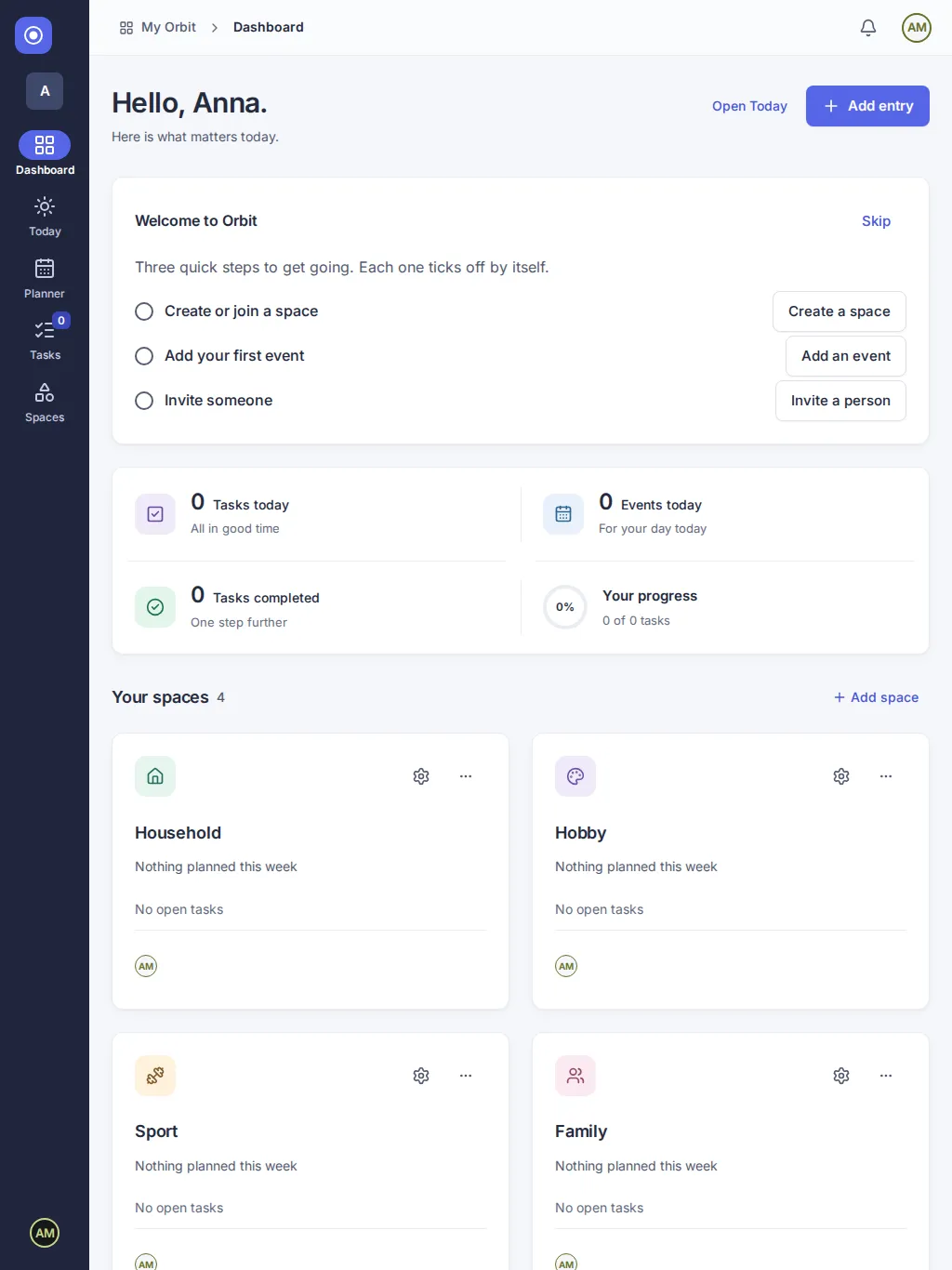
Section titled “First steps in the app”A new account starts with a short welcome card at the top of the Dashboard. It lists up to three steps, each with one button:
- Create or join a space. Opens the spaces page where you can add a space. If you signed up through an invitation, this step is already done.
- Add your first event. Opens the form for a new event.
- Invite someone. Opens the settings of your space, where you invite people by e-mail.
A step ticks off by itself as soon as it is done. Steps you cannot do are left out, for example inviting someone when you only have access to a shared space. Choose Skip at any time, or Got it once everything is done: the card is gone on all your devices. Accounts that existed before the welcome card was added never see it.
Connection and updates
Section titled “Connection and updates”Orbit needs an internet connection to sign in, load your Orbit and save changes. After a previous visit, the app may still open without a connection, but your data is not available offline and you cannot save changes.
- If Orbit opens without showing your data, check your internet connection.
- Reconnect and reload Orbit to load the latest data.
Updates are prepared automatically while you are connected, without a confirmation prompt. Reload Orbit to use the latest available version.
Does opening Orbit offline mean my week is saved on this device?
Section titled “Does opening Orbit offline mean my week is saved on this device?”No. Opening the app offline does not make your Orbit’s data available offline. Reconnect before using Orbit.
How do I change between light and dark appearance?
Section titled “How do I change between light and dark appearance?”Orbit follows your device’s light or dark appearance automatically. Change that preference on your device; Orbit has no separate appearance switch. Keyboard users can use Tab to move between controls; a visible outline marks the focused control.
Version 0.1.0+production