Notifications
Orbit can send notifications to your phone or computer, for example a reminder before an event. A notification shows only a title and a time, never notes or places. You choose on each device whether it gets notifications, and what you want to hear about. The family hub and children’s profiles never get notifications.
Install Orbit first
Section titled “Install Orbit first”Notifications work for Orbit as an installed app.
iPhone and iPad (iOS 16.4 or later):
- Open Orbit in Safari and tap the Share button.
- Choose Add to Home Screen and confirm.
- Open Orbit from the new icon on your Home Screen, not from Safari. Notifications can only be turned on there.
Android (Chrome):
- Open Orbit in Chrome and open the menu with the three dots.
- Choose Install app (or Add to Home screen) and confirm.
- Open Orbit from its icon.
On a computer, the browser’s install button in the address bar does the same. Orbit also works in a normal browser tab on Android and on a computer; on iPhone and iPad it needs the Home Screen.
Turn notifications on
Section titled “Turn notifications on”The card shows a short hint the first time: on an iPhone, install Orbit to the Home Screen first, then turn notifications on and allow them. Choose Got it to dismiss it. The ? beside the card title says the same at any time.
- Open My Orbit › Settings and find the card Notifications.
- Turn on Notifications on this device. Your browser asks for permission; choose Allow.
- Choose Send test notification. A notification titled “Orbit” with the text “Test” appears on this device.
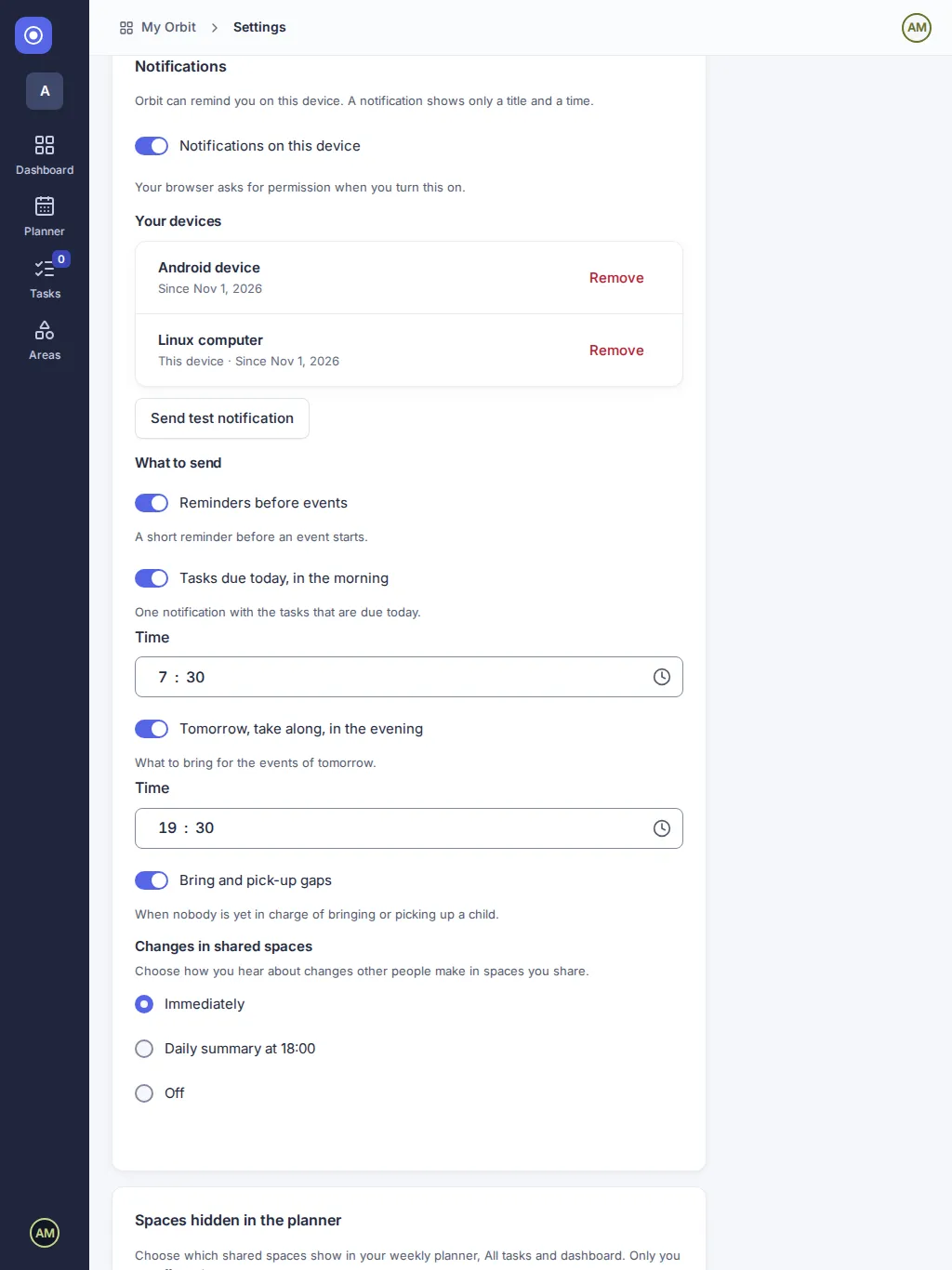
Each device is turned on separately. Under Your devices you see every device that gets notifications, and you can remove one with Remove. When you sign out of Orbit on a device, it stops getting your notifications.
If you chose “Don’t allow”
Section titled “If you chose “Don’t allow””The card then says Notifications are blocked in the browser and nothing is turned on. Open the settings of your browser or phone, allow notifications for Orbit, and reload the page. Then turn the switch on again.
What you get
Section titled “What you get”Each change is saved at once; “Saved” confirms it.
- Reminders before events: a reminder before an event starts. How long before is chosen on each event (see below). If you turn this off, you get no event reminders at all.
- Tasks due today, in the morning: one notification such as “3 tasks due today”. The time is 07:30 unless you change it. A task with its own reminder time reaches you at that time whatever this switch says.
- Tomorrow, take along, in the evening: one notification such as “Tomorrow: 3 things to take along”. The time is 19:30 unless you change it. Tap it to open Today, where Tomorrow take along lists the things by child. If there is nothing to take along, you get no notification.
- Bring and pick-up gaps: an evening notification such as “Tomorrow: pick up Johann 17:30 still open” when nobody is yet in charge of bringing or picking up a child tomorrow. You get it at the same evening time, only if you are an adult of that space, and only while the slot is open. Once someone takes it, nothing more is sent.
- Changes in shared spaces: choose Immediately, Daily summary at 18:00 or Off. See “Changes in shared spaces” below.
A switch that is off means nothing is sent for it. These choices belong to you; other people keep their own.
Reminders for events and tasks
Section titled “Reminders for events and tasks”Events. In the form of an event or a series, the field Reminder sets when the people of the event are reminded: None, At start, 5, 15 or 30 minutes before, 1 or 2 hours before, 1 day before or 1 week before. New events remind 15 minutes before; all-day events remind the day before at 18:00. In a series you can give a single day its own reminder: open that day and use Reminder for this day, or Use the series reminder to go back. Every person of the event who has an account, belongs to the space and has event reminders on gets the notification on all their devices, once. A small bell in the planner shows which events have a reminder. Moving an event moves the reminder with it; deleting it cancels the reminder.
Tasks. On a task, Remind me offers Later today, Tomorrow morning, Next week or a date and time of your own. The person the task is assigned to (or its creator, if nobody is) gets a notification with the task title at exactly that time. Tasks due today are summed up in one notification each morning.
The notification shows only the title and the time. Tap it to open Orbit on that day or on your tasks. A reminder that could not be sent for more than ten minutes (for example while Orbit was unavailable) is skipped.
The reminder list
Section titled “The reminder list”The bell in the top bar shows how many reminders are due. Choose it to open Reminders. Each entry shows the title, when it is (in red when it is overdue), the place and three buttons:
- Open takes you to the event or task.
- Snooze hides the reminder and sends it again later: after 5 minutes, 15 minutes, 1 hour, 4 hours, or tomorrow morning (at the morning time from your settings).
- Hide hides the reminder. Hide all hides every reminder in the list.
When no reminder is due, the page explains that reminders come from events and tasks that have a reminder, and Open notification settings takes you to your settings. A link leads to this guide. The round ? next to the page title explains the list in a few sentences.
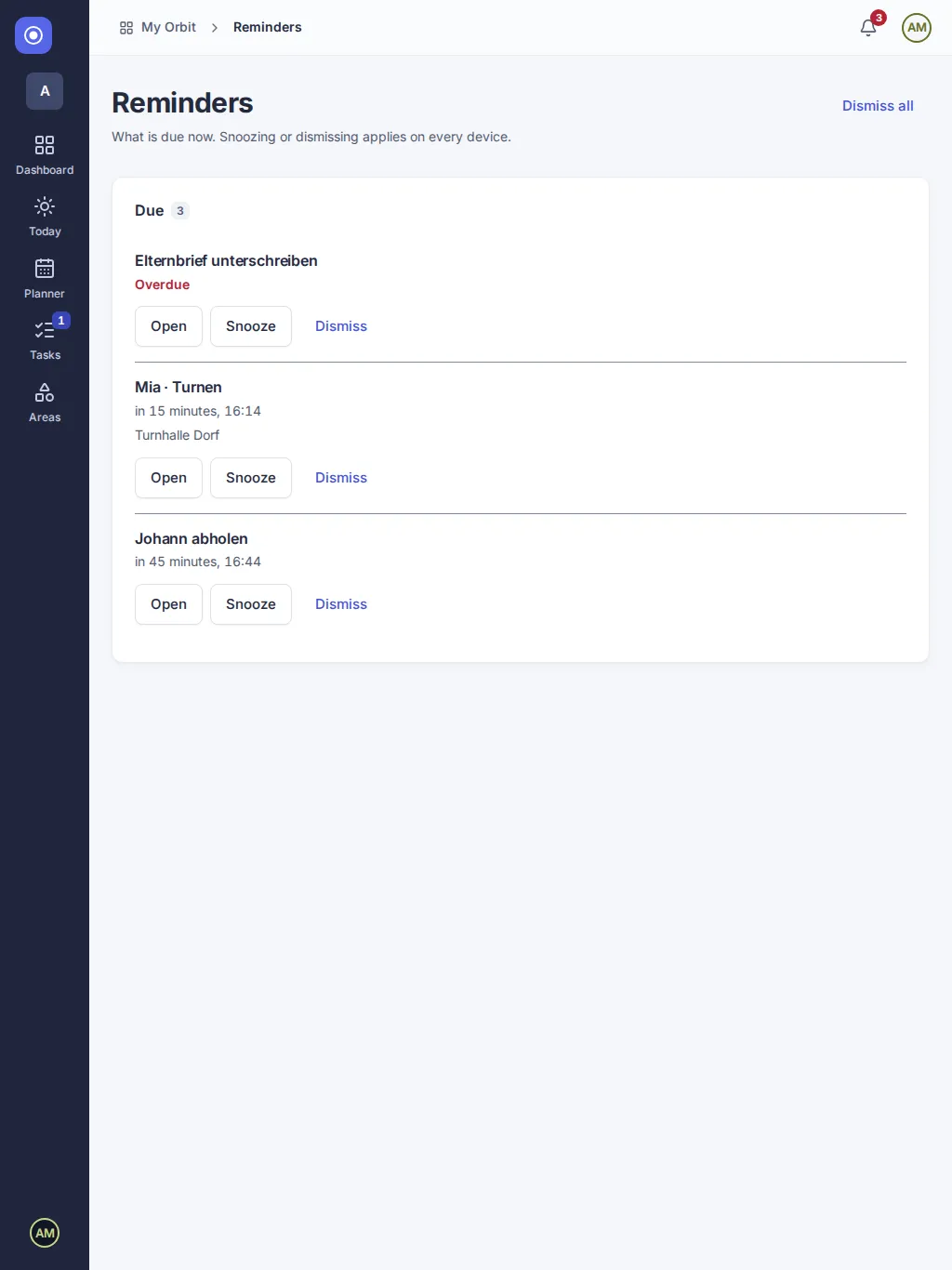
What you do here counts on all your devices: a reminder you snooze on your phone disappears from the list on your computer too, and a hidden one is gone everywhere. Other people never see your reminders.
On Android and on a computer, the notification itself has the buttons Snooze (15 minutes) and Hide. On iPhone, tap the notification to open the list.
Evening reminders
Section titled “Evening reminders”Every evening at your evening time, Orbit looks at tomorrow. The take-along notification shows only the number of things, so nothing private appears on the lock screen; the list itself is in Orbit. Each evening reminder is sent once per evening, even if you change the time afterwards. Only the spaces you belong to count.
Changes in shared spaces
Section titled “Changes in shared spaces”When someone else changes an event or a task in a space you share, and it concerns you or your children, Orbit tells you. It concerns you when you are a participant, the task is assigned to you, you are the person who brings or picks up, or one of your children (a child of a space you own or edit) is part of it. Changes you make yourself never notify you, and neither do spaces you do not belong to or spaces that only you use.
- Immediately: a short notification such as “Piano lesson Mia: new 16:00” with the title and the new time, nothing else. Edits of the same event or task within five minutes become one notification, so you do not get one for every small correction.
- Daily summary at 18:00: one notification at 18:00 your time with the number in the title, for example “3 changes in shared spaces”, and a short line for each in the text, such as “Lukas moved Piano lesson Mia to 16:00”. Nothing is sent on a day without changes.
- Off: you hear nothing about changes of others.
When the change was made by someone’s AI assistant (see AI assistants), the notification says so: the text shows “Anna (via Claude)” instead of just “Anna”, and an immediate notification gets that line as its text.
Notes and places never appear in these notifications. Tap one to open the day of the event or your tasks.
Questions
Section titled “Questions”Why is the switch missing on my iPhone? Orbit was opened in Safari. Add it to the Home Screen and open it from there (iOS 16.4 or later).
Why did I not get a reminder? Check that notifications are on for this device, that the switch for the reminder is on, that you are a participant of the event (or the person the task is assigned to) and that the event has a reminder other than None.
I removed a device by mistake. Turn Notifications on this device on again on that device.
Version 0.1.0+production