Shared with me
Spaces other people share with you are normal spaces in your Orbit. They are listed next to your own spaces and open in the same places: the planner, All tasks, the Dashboard and the space page.
Find shared spaces
Section titled “Find shared spaces”On a large screen the side bar has two sections. My spaces lists the spaces you own. A space other people can use shows Shared · 2, the number of other people. Shared with me lists the spaces where you are editor or viewer, each with a small avatar of the person who shares it. A screen reader announces it as “Shared by Tom”. If nothing is shared with you, the section is not shown.
On a tablet or phone, choose Spaces in the navigation. The page lists the same two sections. If access is removed or the space is archived, it disappears when the page next loads.
Work in a shared space
Section titled “Work in a shared space”Open an entry in the planner, in All tasks or on the Dashboard. Your role decides what you can do:
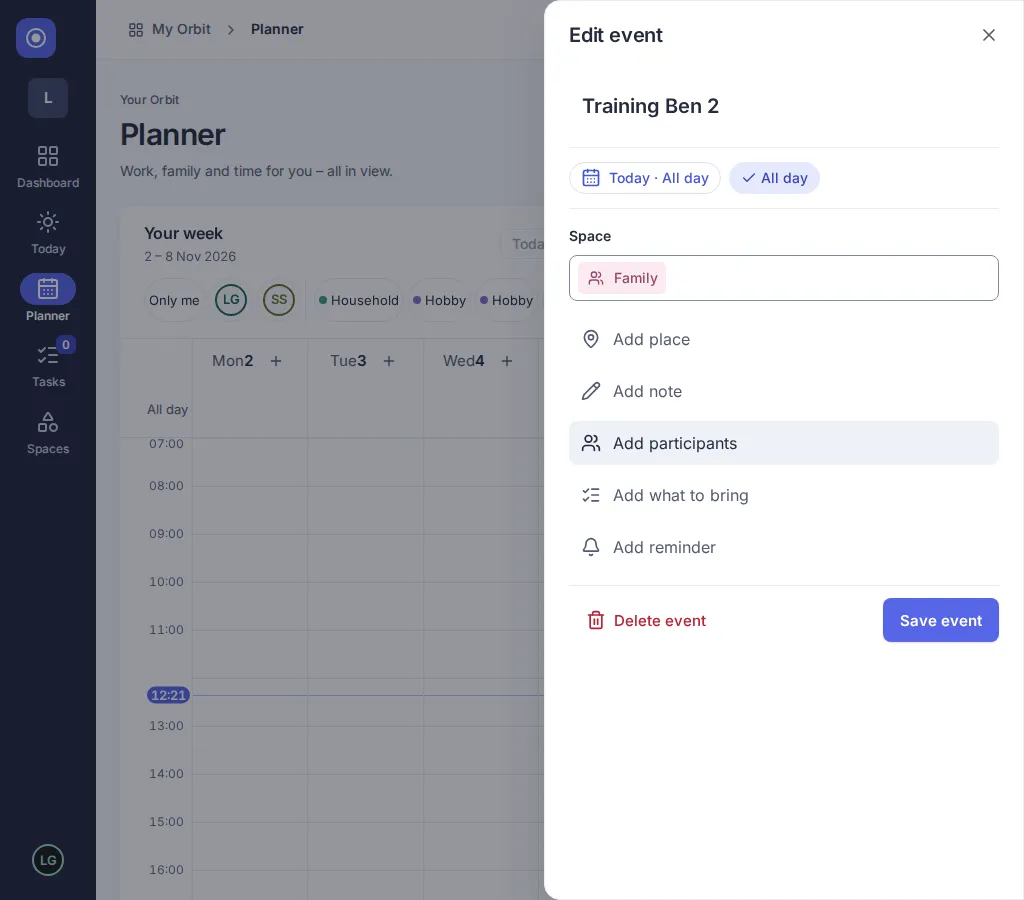
- Editors see the regular form (for example Edit event) and can change, move, complete and delete entries.
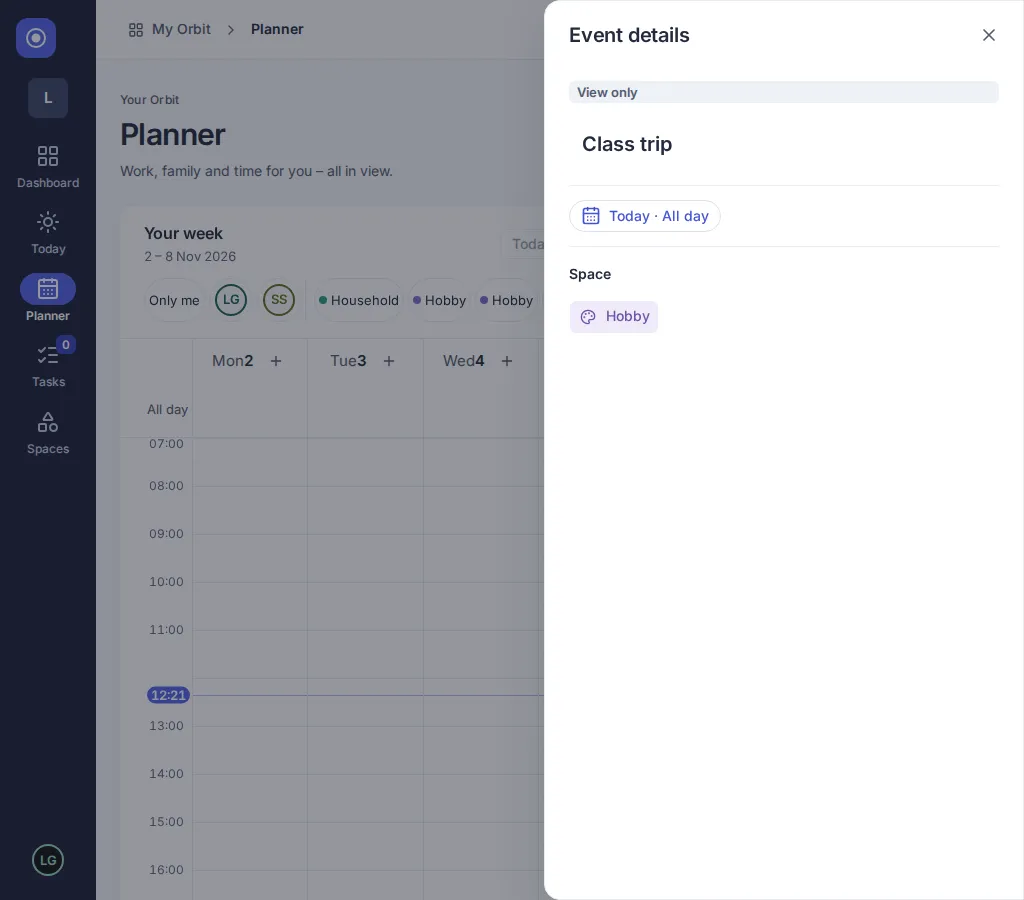
- Viewers see the same form marked View only. They can read everything, change only entries they created and complete only tasks they created or that are assigned to them.
If a change is not allowed, it is refused and nothing changes.
Accept or decline an invitation
Section titled “Accept or decline an invitation”- Open Spaces and find a Pending invitation at the top.
- Check the space, the person who invites you and the offered role.
- Choose Accept to add the space to Shared with me, or Decline to dismiss the invitation without joining.
Pending invitations are shown only for your confirmed email address. When you create an account, Orbit sends a confirmation email; open its link once. Until then the page shows a notice with Send confirmation email again. You can always use the invitation link the owner shared with you; the link flow does not need a confirmed address and adds the space to your Orbit as well. Decline also works on the link page, without an account; the owner then sees only “Declined”. Expired or revoked invitations disappear. If an action fails, reload and ask the owner for a new link.
Hide a shared space
Section titled “Hide a shared space”Open Settings and find Spaces hidden in the planner. Choose Hide in planner next to a space to remove its entries from the planner, All tasks and the Dashboard. Choose Show in weekly planner to bring it back. You can also select the space in the planner or All tasks filter to see it again. Hiding is personal: the space, your role and other people’s views stay unchanged.
Why is a space missing? It may be archived or no longer shared with you.
Can I leave a shared space? Ask the owner to remove you. Hiding only changes your own planner.
Does hiding leave the space? No. It only saves your preference. If access is later restored, the preference is restored too.
Examples
Section titled “Examples”
Version 0.1.0+production