Events and series
Events put appointments and family plans in your Orbit’s shared week. You see events only in spaces you belong to. Owners and editors can change all events in their space; viewers can create events and change only events they created. The same rules apply to series and their occurrences.
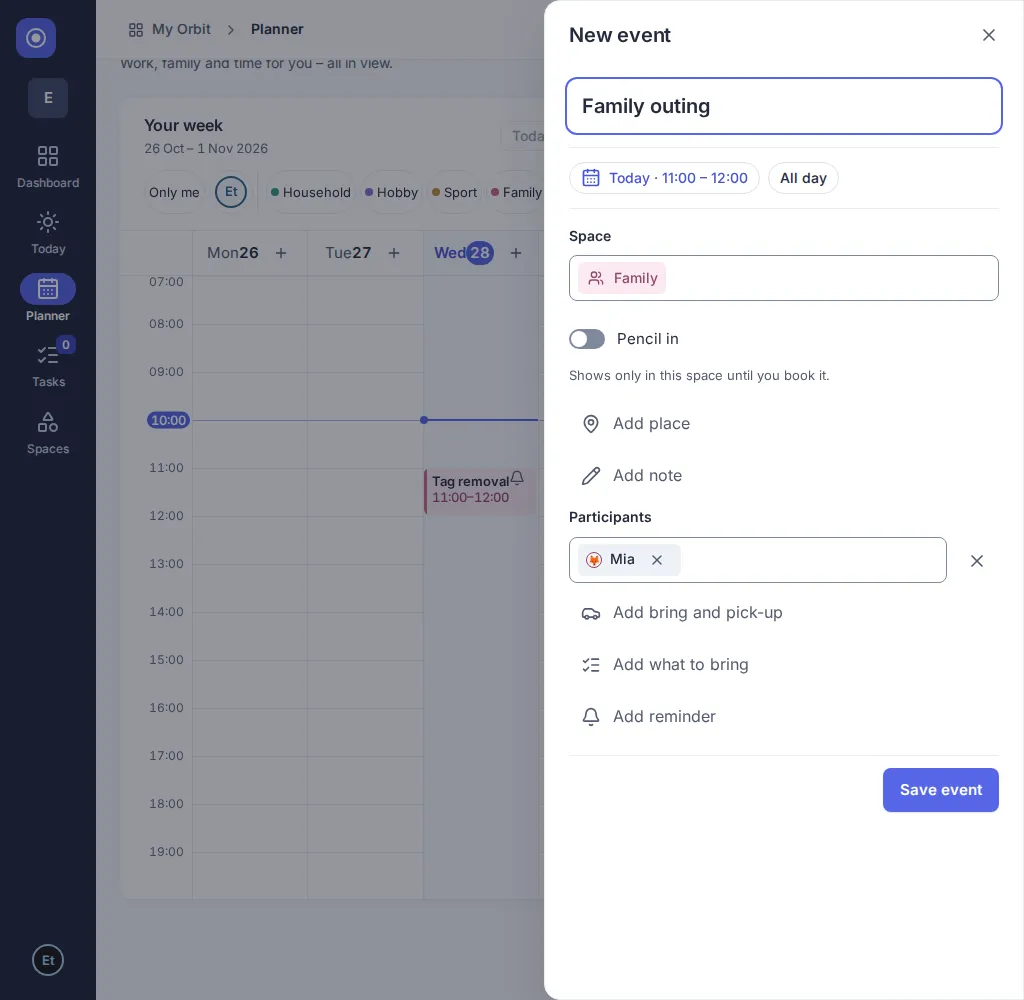
The form is built like the task form: a large title line, one chip for date and time, and optional fields that appear only when you add them. The space is a single choice: you can switch to another space but not remove it, so an event always has one. Remove a participant with its × button (or Delete/Backspace on the tag). Read-only details have no remove buttons.
Add an event
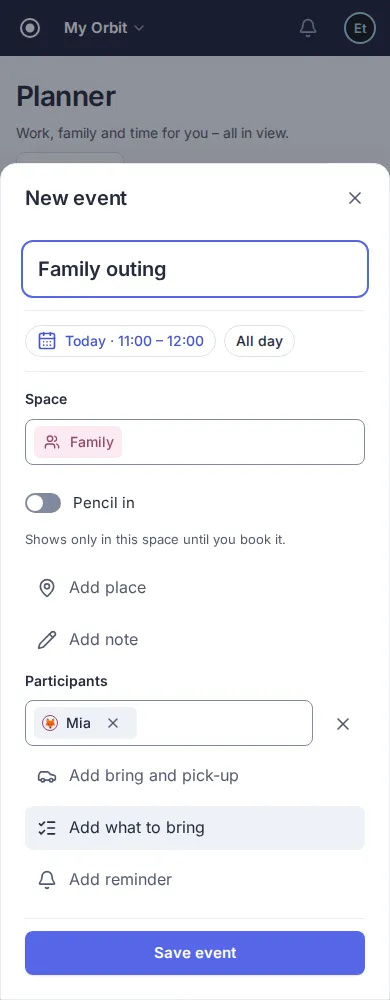
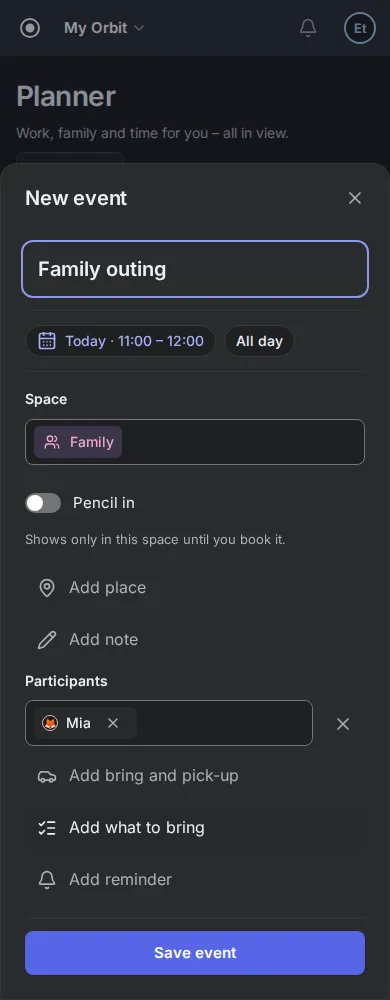
Section titled “Add an event”- Choose Add entry on the Dashboard, the Planner or a space’s page (the round + button on a phone) and then New event. The form opens in a panel at the side, or as a sheet from the bottom on a phone. From a space’s page, the event starts in that space.
- Type the title. The chip below it shows the time, for example “Today · 11:00 – 12:00”: a new event starts at the next full hour today (or at 09:00 on another day) and lasts one hour. Select the chip to open Starts and Ends in place: the calendar button opens a month calendar, the clock button a list of times in 15-minute steps. When you change the start, the end moves along and the event keeps its length. Select the All day chip for an event without times. An all-day end date is included in the event.
- Check the Space. To switch, pick another one from the suggestions; a space cannot be removed.
- Add what you need with the rows below: Add place, Add note, Add participants, Add bring and pick-up (once a child takes part), Add what to bring and Add reminder. A row opens in place and the cursor moves into it; the × next to it empties it and folds it away again. A filled value shows without a tap and is edited right there. Then select Save event.
New events use your Orbit’s time zone. The chip names the zone only when it differs from your device’s time zone. The end of a timed event must follow its start; otherwise the form keeps the pickers open and shows “The end must be after the start.”. A title can contain up to 120 characters, a location 200 and a note 2000. Choose an active space; archived spaces remain on existing events. When you add an event from the planner’s Add entry menu, it starts on the day you last focused, otherwise on today if the shown week contains it, otherwise on the first day of the shown week.
Open, change or delete
Section titled “Open, change or delete”Select an event in the planner, on the Dashboard or on a space’s page to open its details. If you can change it, edit the fields and select Save event. Choose Close or press Escape to leave without saving. If you changed something, Orbit first asks “Discard changes?”; choose Keep editing or Discard. A new event, series or task opens with the cursor in the title; saving without a title shows “Enter a title” under the field.
To delete it, select Delete event. A confirmation names the event; choose Confirm deletion. Deletion cannot be undone. Choose Keep event to cancel. A viewer opening someone else’s event sees read-only details. Moving an event or series requires permission to change it in both the current and destination spaces. Its participants must be allowed in the destination space.
Pencil in and book
Section titled “Pencil in and book”Not sure yet whether you will go? Switch on Pencil in in the event form, in a new series or in quick add. The helper text under the switch says what it does: “Shows only in this space until you book it.” A pencilled-in event is not in the planner, on Today or in reminders; nobody is told about it.
To see what you pencilled in, open the space and choose the Pencilled in tab. The list shows the events and the occurrences of series that are still ahead, grouped by day. Select Book next to one to put it in your week with one tap. A message confirms it; choose Undo in that message to take the booking back. If booking fails, for example without a connection, the item stays in the list, a message tells you nothing was changed, and you can try again. Select the pencil button of an item to open its details; they say “Pencilled in – not in your week yet.”
Booking a single event turns it into a normal event. Booking one occurrence of a series turns just that day into a normal event with the participants, place, note and reminder of the series; the other days stay pencilled in. Owners and editors can book; viewers see the list but no Book button. An offer whose day has passed disappears from the list on its own. An empty list shows Pencil in an event, which opens the event form with the switch already on.
Use the calendar with a keyboard
Section titled “Use the calendar with a keyboard”- Select the date and time chip with Enter or Space, then open the calendar button beside a date.
- Press Escape to close the calendar. Focus returns to the calendar button, and the event form stays open.
- Press Escape again to close the event form without saving (after the “Discard changes?” question if you changed something).
Dates and time zones
Section titled “Dates and time zones”The planner shows timed events in your device’s time zone. The editor uses the event’s original zone, shown beside the time when it differs from your device’s zone. All-day events stay on the same calendar dates wherever you view them. At a daylight-saving change, a repeated time uses its first occurrence; a nonexistent time moves forward by the clock-change gap. Check the saved event in the planner after entering such a time.
Limits and common questions
Section titled “Limits and common questions”Why can I not select a person? Only current members and child profiles belonging to the chosen space appear. Children do not sign in themselves. A removed member disappears from participant lists. These rules also apply to series. Existing adult and teen participants can stay when you change other details in the same space, even if they no longer belong to that space. Children must still belong to the space when you save changes.
Why is a change missing? Reload the page to see changes made by another person.
Can I sync an external calendar? External calendars, offers and reminders are not available yet. Settings › Apps & services shows where they will be connected, see Calendar sync.
Repeat an event (series)
Section titled “Repeat an event (series)”- Choose Add entry and then New series, and enter a title.
- Select the date and time chip to set the start date and times, or choose the All day chip and enter the number of days. For an overnight or longer timed event, set the end date too.
- Under Repeat, choose Daily (and every how many days), Weekly, Every 2 weeks or a monthly choice such as Monthly on the first Saturday (the weekday is the one of the start date). For the weekly choices, select the weekdays; the first occurrence is a matching day on or after the start date.
- Under End series, choose On date (an inclusive last date within five years of the start), After a number of occurrences (1–730) or No end date for a plan that simply continues.
- Check the space and add participants, a place, a note, a reminder or a list with the rows below the form, then choose Save series.
The series uses your Orbit’s time zone, which the form names when it differs from your device’s zone. Its local start time stays the same across daylight-saving changes, even if you view it from another zone. A time in a spring clock gap advances through the gap; an ambiguous autumn time uses the earlier occurrence. Timed durations count elapsed minutes; all-day durations count calendar days.
Repeated events show a repeat symbol in the planner. Open any occurrence to change the whole series, including earlier occurrences. Choose Delete series; the confirmation names the series, and Confirm deletion removes every occurrence. Viewers can change only series they created.
Can I repeat an event?
Section titled “Can I repeat an event?”Yes: daily, weekly, every second week, or monthly on the first, second, third, fourth or last weekday, with an end date, a number of occurrences or no end. You can skip or move individual occurrences. A weekday that does not exist in a month is left out (a fifth Saturday does not exist in most months). Other monthly rules and yearly patterns are not supported.
Skip or move one occurrence
Section titled “Skip or move one occurrence”- Open the occurrence in the planner. Under This occurrence, choose Skip this occurrence or Move this occurrence.
- For skipping, a confirmation names the event and its date; choose Confirm skip. Choose Keep occurrence to cancel.
- For moving, enter the start and end dates and times in the displayed series time zone, then choose Save occurrence. The end must follow the start and the duration cannot exceed seven days.
- Check the week containing the new date in the planner. The occurrence is marked Moved (in the grid, when the block is wide enough) and no longer appears at its original time. You can open it and move it again.
You can skip all-day occurrences, but cannot move them yet. Only people who can edit the series see these actions. Other occurrences keep their times, and the total number of occurrences does not increase after skipping or moving one.
What happens if I edit the whole series later?
Section titled “What happens if I edit the whole series later?”Skipped dates stay skipped; moved occurrences keep the times you saved. If a changed pattern no longer includes an original date, its exception is inactive. It becomes active again if the original date returns to the pattern. Moving is inactive while a series is all-day. You can restore a moved occurrence to the time defined by the current series pattern. Skipped occurrences cannot be restored.
Restore the original time
Section titled “Restore the original time”- Open the occurrence marked Moved in the planner.
- Under This occurrence, choose Restore original time.
- Choose Confirm restore to return it to the time defined by the series. Choose Keep moved time to cancel.
- Check the week containing the original date. The occurrence appears at its original time without Moved; the moved entry disappears.
Only people who can edit the series see this action. If restoring fails, the panel stays open and shows an error. Other occurrences and the series count stay unchanged.
Can I restore a skipped occurrence?
Section titled “Can I restore a skipped occurrence?”No. Skipping is final; skipped occurrences stay hidden from the planner.
Who brings and who picks up
Section titled “Who brings and who picks up”When a child is a participant of an event or series, you can say which adult brings the child and which adult picks it up. The planner then shows, for example, “Anna brings”.
- Open or create the event or series and add a child as a participant.
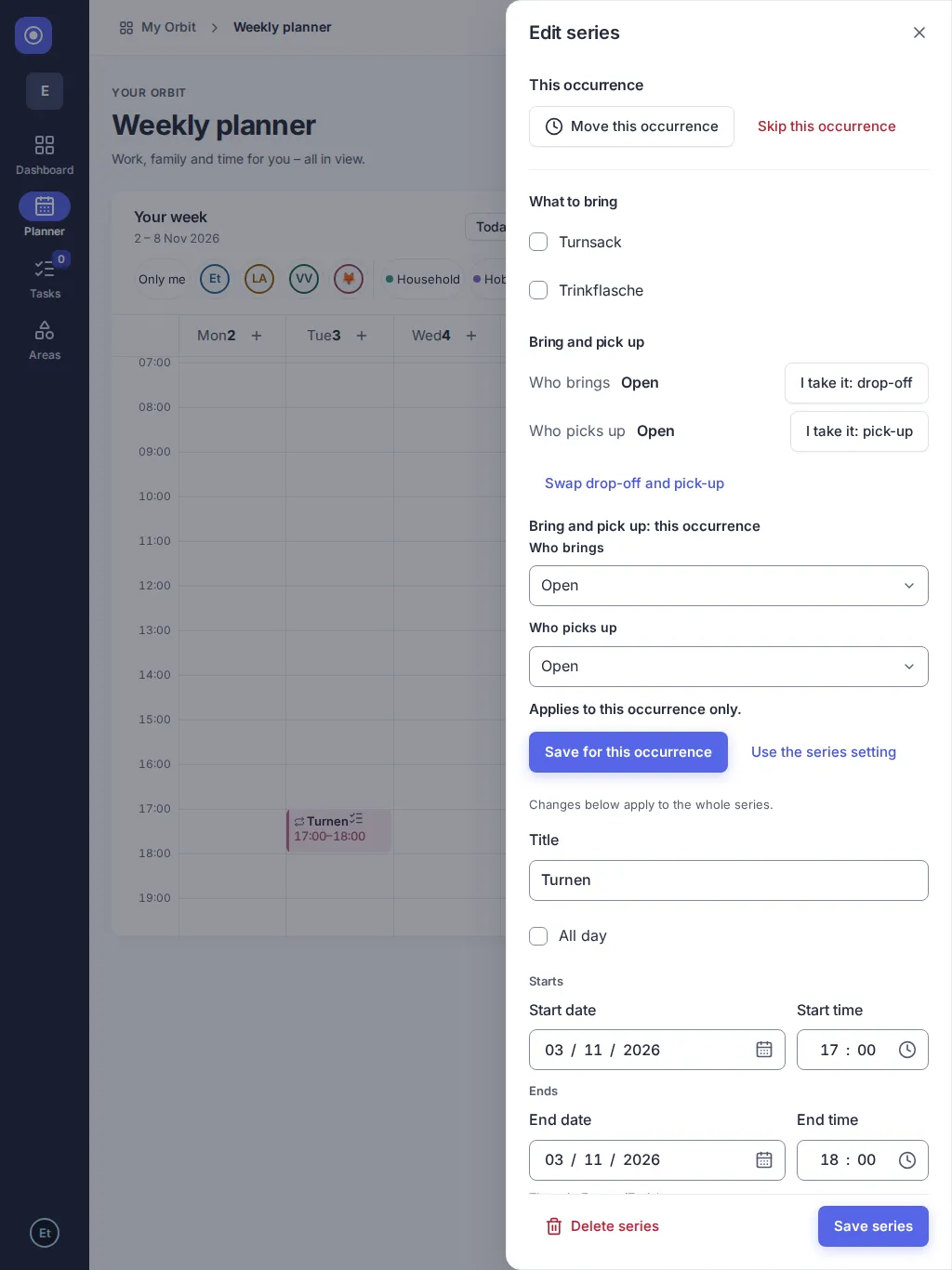
- Select Add bring and pick-up, then choose a person for Who brings and for Who picks up. Only adults of the space who can edit it are offered, and Open means nobody has taken it yet.
- Save. For a series, every occurrence shows the same people.
The round ? next to Bring and pick up, in the form and, if you may change it, in the event’s details, explains this in a few sentences.
To change one day of a series, open that occurrence. Under Bring and pick up: this occurrence, choose other people and select Save for this occurrence. Use the series setting removes the change again. The form below still changes the whole series.
I take it: in the details of an event or occurrence, an open slot has the button I take it: drop-off or I take it: pick-up. It assigns you with one click. If someone else took the slot a moment earlier, you see the new name instead. Swap drop-off and pick-up exchanges the two people.
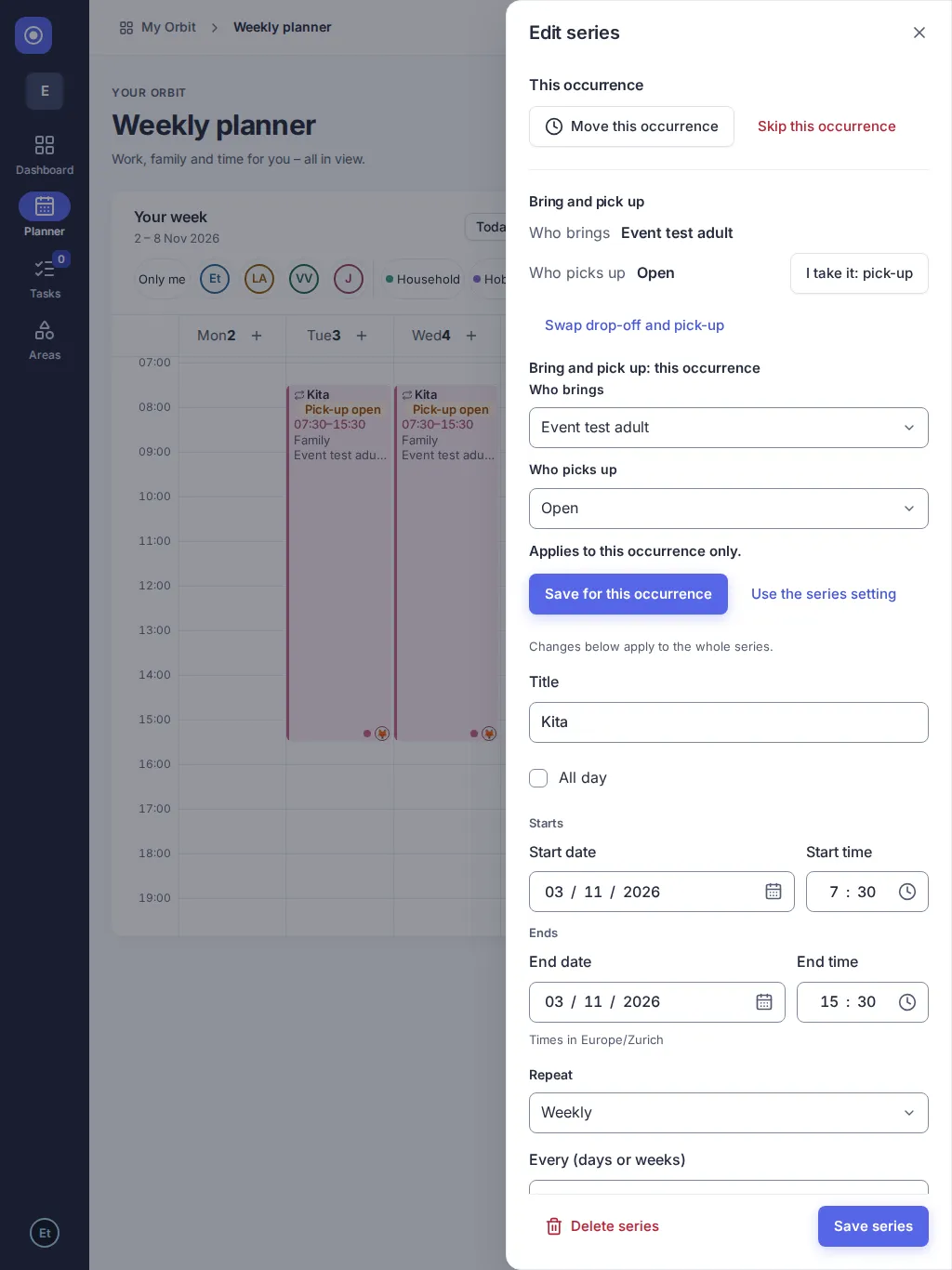
A slot that needs attention is marked in the week and the day view with a warning badge and words, never by colour alone:
- Drop-off open or Pick-up open: nobody is assigned yet.
- Anna is busy at drop-off or Anna is busy at pick-up: the assigned adult has another event at that moment, among the events you can see. Events that only end or start at that minute do not count as a conflict, and all-day events never do.
Events without a child never show who brings or picks up.
Who can change it?
Section titled “Who can change it?”Owners and editors of the space. Viewers, including teens, see who brings and picks up but have no pickers and no buttons. A viewer who created an event can still edit the event itself.
Why can I not choose someone?
Section titled “Why can I not choose someone?”Only adults who are owners or editors of the event’s space are offered. A person who left the space disappears from the slot, and the slot shows as open. Removing the last child from the event also clears who brings and picks up.
What to bring
Section titled “What to bring”An event or a series can carry a short list of things to bring, for example “Gym bag” and “Water bottle” for a child’s gym class every Tuesday.
- Open or create the event or series.
- Select Add what to bring and then Add item and type the item. You can add up to 20 items of up to 80 characters each. The cross next to an item removes it.
- Save. For a series, every occurrence shows the same items.
Open an occurrence to tick items off. Ticking “Gym bag” on Tuesday 10 November does not tick it on Tuesday 17 November. In the week, an occurrence with items has a small list mark, and its name says how many items are packed.
What happens if I change the list of a series?
Section titled “What happens if I change the list of a series?”The change applies from today on. Past occurrences keep their items and ticks.
Who can change the list and who can tick?
Section titled “Who can change the list and who can tick?”Owners and editors of the space change the list and tick everything. Viewers, including teens, cannot change the list. They can tick the items of events they take part in, or of events that have their child as a participant.
Why can I not add more items?
Section titled “Why can I not add more items?”A list has at most 20 items, and an item has at most 80 characters.
Who can I choose?
Section titled “Who can I choose?”Participant and task assignee choices show only people and children belonging to the selected space. Switching spaces refreshes the choices. Planner person filters show people from spaces you belong to. Nobody gets access to private spaces or their people through another role. A person outside the entry’s space cannot be newly assigned; moving an entry may require changing its people first.
Recently used values and search
Section titled “Recently used values and search”Focus a participants or assignee field to see up to four values you recently saved in that field. Type a name to search; selected tags stay visible as results change. Spaces show your recent choices first. Choosing another space removes people who cannot be used there.
Why don’t I see everyone?
Section titled “Why don’t I see everyone?”Suggestions include only people in the selected space that you can access. Type to find someone beyond your recent choices; searches show up to eight matches at a time. Teens can assign tasks only to themselves. Opening a field does not change your recent choices; saving an entry does.
Version 0.1.0+production