Two-factor sign-in
Two-factor sign-in adds a second step to signing in: after your password you enter a six-digit code from an authenticator app on your phone. Even if someone learns your password, they cannot sign in without your phone. It is optional and off by default. It works for adults and teen accounts. Children have no sign-in: they use the family hub, which is not affected.
Turn it on
Section titled “Turn it on”You need an authenticator app (any app that supports time-based codes, such as the apps from Google, Microsoft, Aegis or 1Password).
- Open My Orbit › Settings and find the Security card. Choose Turn on two-factor sign-in.
- Enter your password and choose Continue.
- Add Orbit to your authenticator app. Orbit does not show a QR code. On the phone with the app, open the link Open in authenticator app. On a computer, type the secret into the app by hand: it is shown in groups of four, and Copy secret copies it.
- Enter the six-digit code the app now shows and choose Verify and turn on. A wrong code shows a message under the field; try the next code.
- Orbit shows your 10 backup codes. Choose Copy codes or Download as text file and keep them somewhere safe, for example in a password manager. They are shown only now. Choose I saved them.
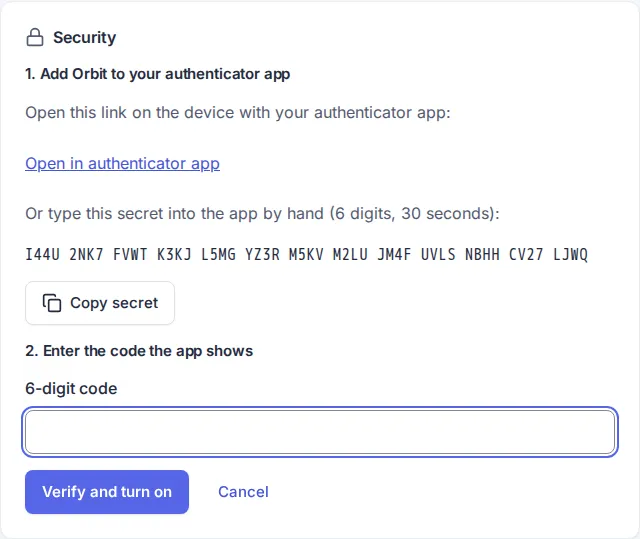
Two-factor sign-in only starts after step 4. If you leave before, nothing changes.
Sign in with a code
Section titled “Sign in with a code”After the correct password, Orbit asks for the code. The cursor is already in the field; your phone may offer to fill the code in.
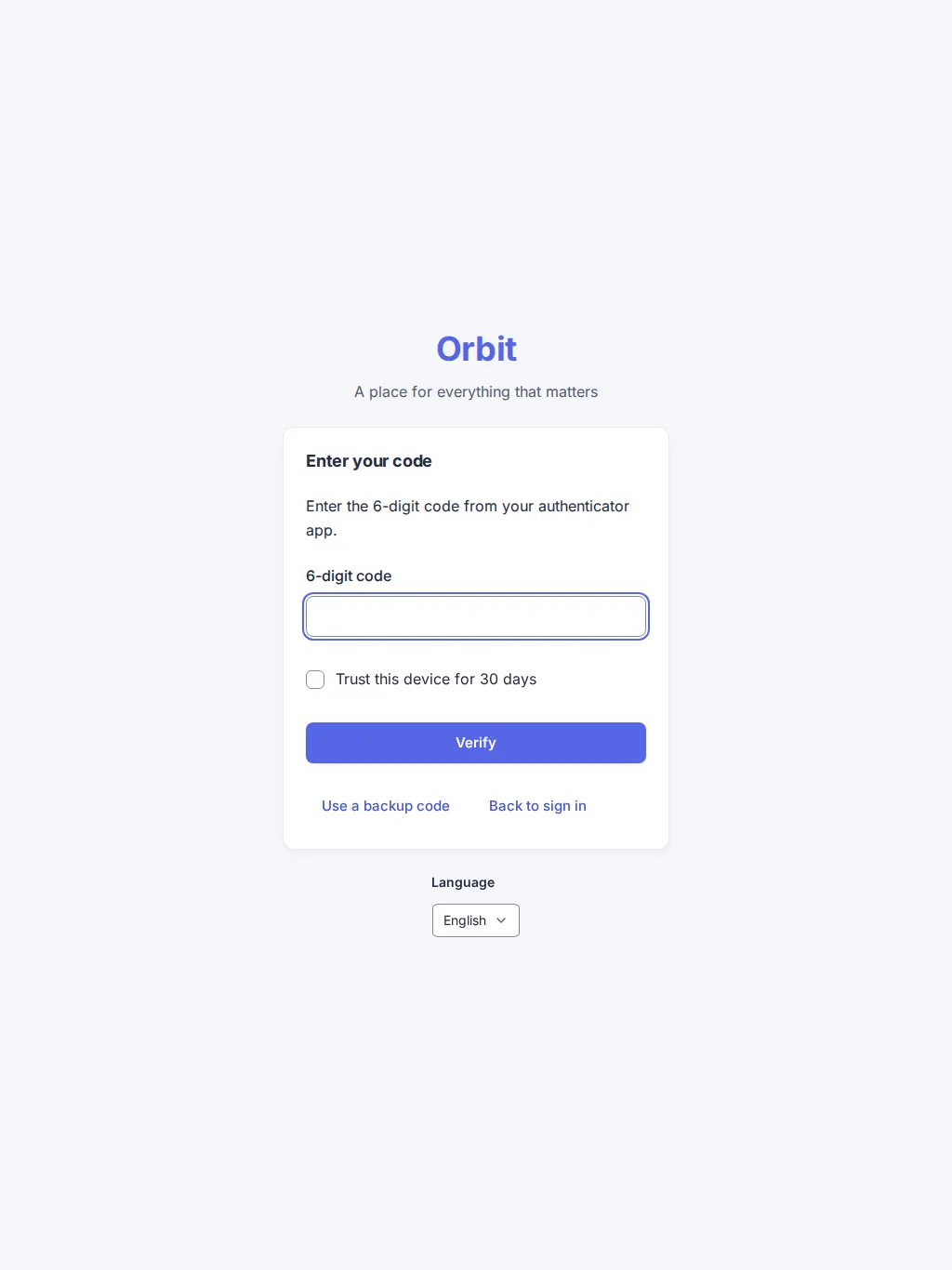
- Enter the six digits from your app and choose Verify. If you came to the sign-in page from an assistant that asks for access, you return to it after the code.
- Use a backup code takes one of your backup codes instead, for example when you lost your phone. Each backup code works once.
- Trust this device for 30 days is off. If you tick it, this browser skips the code for 30 days. Do not tick it on a shared computer. Turning two-factor sign-in off ends the trust.
- Back to sign in starts again with e-mail and password. The step expires after 10 minutes.
Backup codes and turning it off
Section titled “Backup codes and turning it off”- New backup codes (password needed) creates 10 new codes; the old ones stop working.
- Turn off needs your password and a current code from the app, or a backup code. Orbit then forgets the secret and the codes.
Setting a new password with Forgot your password does not turn two-factor sign-in off. You still enter a code at the next sign-in.
I lost my phone and have no backup code. Orbit cannot reset two-factor sign-in for you. Ask the person who runs your Orbit server; they can remove it on the server.
The code is not accepted. The clock of your phone must be right (set it to automatic time). Codes change every 30 seconds; enter the current one. After five wrong codes in one sign-in you start again; after ten wrong codes in a row the account is locked for 15 minutes.
Is a code with a space accepted? Backup codes may be typed with or without the dash; app codes are exactly six digits.
Version 0.1.0+production