Spaces and tasks
Spaces group what belongs together, for example Household, Work, Family or Sport. Every event and every task belongs to one space. Every Orbit starts with Household, Hobby, Sport and Family. Spaces were called spaces before. Default names follow your selected language until the space owner renames them.
Each space has one of six colours: violet, blue, orange, green, rose or cyan. The name is always shown beside its colour, so you never have to tell spaces apart by colour alone.
Remove a selected space or assignee with its × button. Removing the assignee leaves Nobody. Removing the space leaves Choose a space; saving requires a space and shows “Choose a space.” until you pick one. Read-only fields have no remove buttons.
My spaces
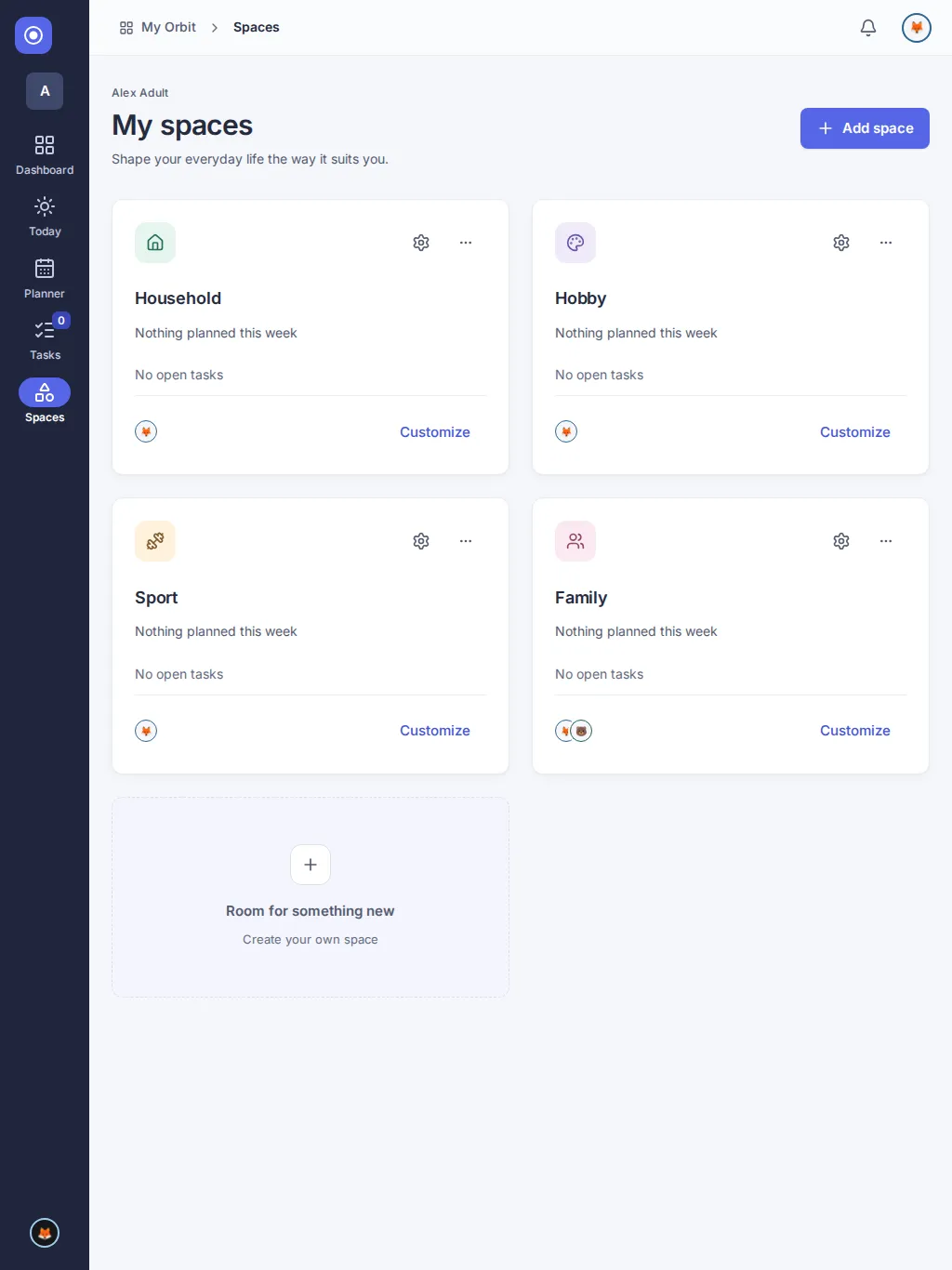
Section titled “My spaces”My spaces in the side bar lists every active space you belong to. Choose a space to open its page. On a tablet or phone, choose Spaces in the navigation.
If you have archived every space, the page says No space yet and offers Add space. Restore an archived one below instead if you prefer.
The page My spaces (menu › Spaces) shows one card per space with its open tasks and this week’s events. Open it with Manage spaces at the bottom of the side bar, with Spaces in the menu. You see only spaces you belong to; only a space’s owner can change it. You can add your own spaces.
Each card shows the people who belong to the space as small pictures (or initials), children included. After five people the card shows + and the number of the others. Screen readers read the names of everybody, for example “Members: Alex, Sam and Kim”.
The gear Settings of and the space name opens the space settings directly, where you set the modules and the people. Only the space owner sees the gear.
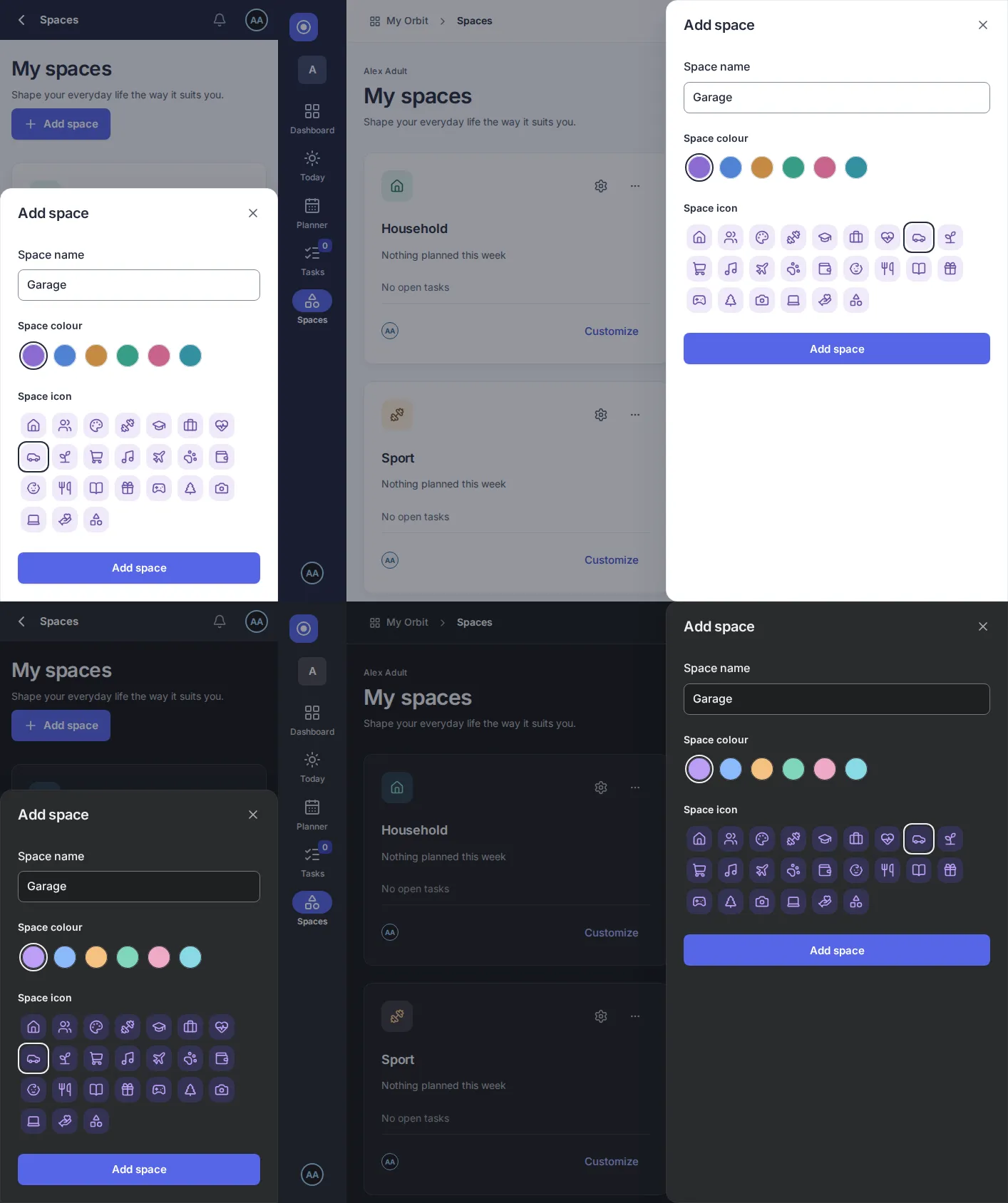
- To add a space, choose Add space at the top, the + beside “My spaces” in the side bar, New space or the card “Room for something new”. Enter an Space name (1 to 80 characters), choose an Space colour and an Space icon, then choose Add space in the panel.
- To change the modules or the people of a space, choose the gear Settings of and the space name on its card (owners only).
- To change the name, colour or icon of a space, choose Customize on its card. Change the name, colour or icon and choose Save space. Choose Close to leave without saving.
- To stop using a space, open the three-dot menu on its card (“More actions for” and the name) and choose Archive space. Confirm with Archive space. The space disappears from the side bar, the filters and the choices in forms; its events and tasks stay.
- Archived spaces are listed under Archived spaces at the bottom. Choose Restore to make one available again.
Choose from 24 symbols, such as Car, Garden or Music. The selected symbol uses the space colour. Use the arrow keys to move between symbols. The same choices are available on phone and desktop. The symbol appears on space cards, in the side bar and space menus, in form space fields, in the space and settings headers, and in the archived list. Planner entries and task rows keep colour dots.
Spaces cannot be deleted or reordered. A new space belongs to its creator alone. Owners invite people and change roles under People.
A space’s page
Section titled “A space’s page”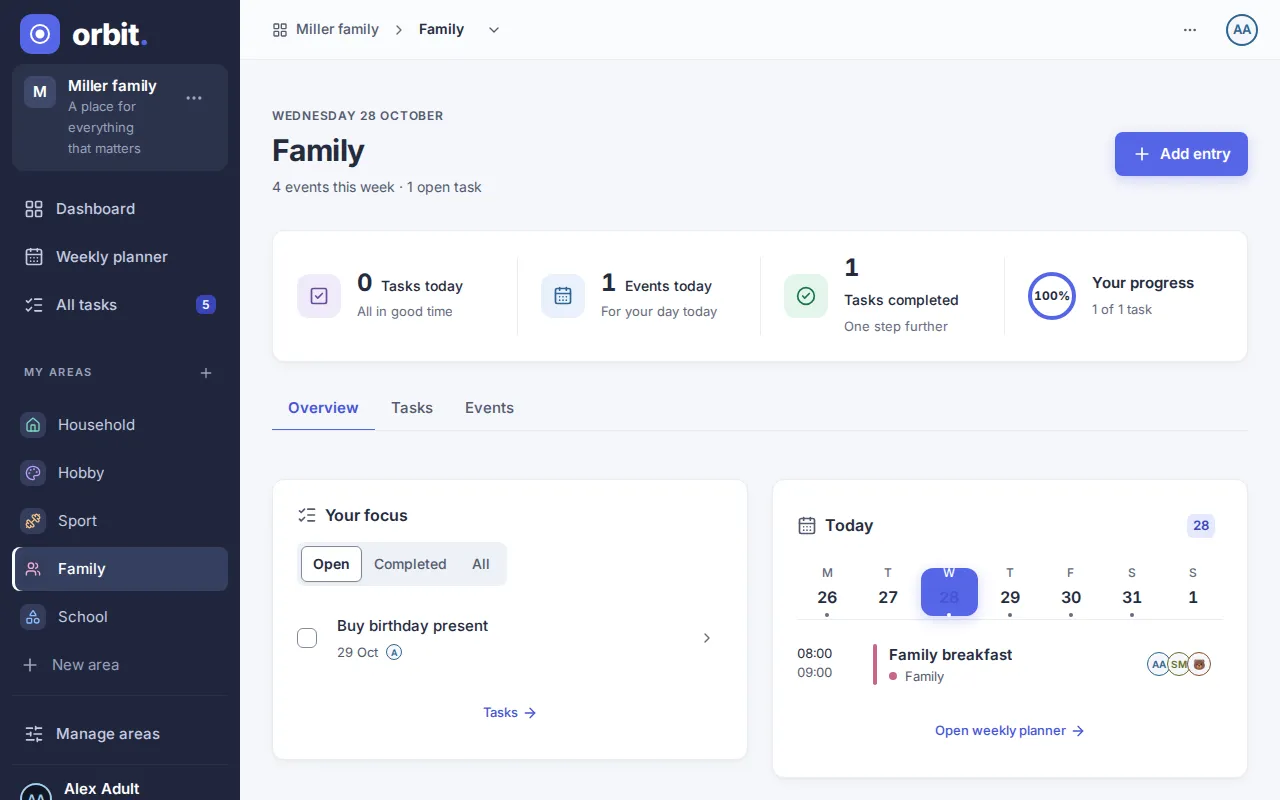
A space’s page shows today’s date, the space’s name and its figures for today. On a phone the space’s icon sits above the name, so the name and Add entry keep the full width. Three tabs show its content; if they do not all fit, the row scrolls sideways and is shaded at the edge where more tabs wait:
- Overview: the space’s open tasks and today’s entries.
- Tasks: all tasks of the space, with the same filters as All tasks.
- Events: the Planner with only this space’s events and tasks. Today, Previous and Next stay on the space’s page.
Add entry creates an event, series or task in this space. Space owners find Customize space and Archive space in the three-dot menu at the top right of the page. In the path at the top, the space’s name opens a menu to switch to another space or to Manage spaces.
All tasks
Section titled “All tasks”The Tasks guide explains lists, filters and adding tasks.
Add and change tasks
Section titled “Add and change tasks”See Add and change tasks.
Questions
Section titled “Questions”Why are there no Customize or Archive buttons? Only the space owner can customize, archive or restore a space. Editors and viewers can see the space, including when archived, without these controls.
Does archiving delete the space? No. It stays under Archived spaces and can be restored. Archived spaces are left out of the choices in forms.
Why is the checkbox disabled? You may complete only tasks allowed by your role.
Where is a completed task? On All tasks under Completed. In the planner it stays on its day or in No date and can be reopened. Under No date, completed tasks appear after open tasks.
Why do I see “+2 more tasks”? A day in the calendar grid shows three tasks at first. Choose it to show all of that day’s tasks and Fewer tasks to collapse them again.
Why is an assignee missing? Someone who has left the space is no longer shown as assigned.
Reload the page to see changes made by another person.
Switch modules on and off
Section titled “Switch modules on and off”Only the space’s owner can change its modules.
- Open the space and select the Space settings gear in the top bar, or choose Space settings in its … menu.
- Under Modules, switch Tasks, Events or Family on or off. Each change saves immediately. If saving fails, an error appears and the switch keeps its previous value.
- Return to the space using its breadcrumb.
Tasks and Events start on in every space. Switching one off hides its tab and create options, and hides its entries from the space, All tasks, Dashboard and Planner. Nothing is deleted: switch it back on to see the same entries and completion state. You cannot create or move entries into a space with that module off; its space option is hidden in the form. Entries already in the space stay there, hidden, until you switch the module back on.
The main navigation remains visible even if every space has a module off.
Share a space
Section titled “Share a space”Only space owners can manage people.
- Open the space and choose Space settings in the top bar.
- Under People, each person has one row on every screen size: avatar and name on the left, the role list and the … menu on the right. Your own row is marked (you).
- Choose Owner, Editor or Viewer in the role list. Changes save immediately. Owners manage the space and its people; editors manage entries; viewers can see entries and change their own. A teen account can be a viewer only in a space of someone else. To invite someone, use Invite a person in the same card, see Orbits and people. A teen account does not invite people.
- To stop someone’s access to this space, open the row’s … menu, choose Remove, check the name and confirm. Their other spaces remain. Removing a child from the space keeps the child’s profile.
A space needs at least one owner. The last owner’s role and Remove controls are disabled; make another adult an owner first. Child profiles have no login and a fixed Child profile role. Their role cannot be changed, but they can be removed from the space.
If you step down or remove yourself while another owner remains, settings become unavailable. If saving fails, the error explains the problem; reload to see the latest membership list.
Can access return after removal? Rerunning setup does not restore removed access, and there are no Orbit roles that could.
Imported events
Section titled “Imported events”As the space owner, open Space settings and scroll below Modules to Imported events. This section will show which external calendars appear in the space. It currently shows No calendars appear in this space yet. Follow Open Connections in Settings to see the planned sources. Calendar connections come later; imported events will be read-only and carry the imported badge.
Recently used values and search
Section titled “Recently used values and search”Focus a participants or assignee field to see up to four values you recently saved in that field. Type a name to search; selected tags stay visible as results change. Spaces show your recent choices first. Choosing another space removes people who cannot be used there.
Why don’t I see everyone?
Section titled “Why don’t I see everyone?”Suggestions include only people in the selected space that you can access. Type to find someone beyond your recent choices; searches show up to eight matches at a time. Teens can assign tasks only to themselves. Opening a field does not change your recent choices; saving an entry does.
Version 0.1.0+production