Family hub
The family hub turns a tablet, for example in the kitchen, into your family’s shared screen. The tablet shows a short code, and an adult confirms it on their own phone. The hub shows today and the week and the children of your family. A child taps their picture and sees their own tasks, appointments and what to take along, and ticks off their tasks. The hub cannot open settings or anyone’s account, and only an adult can end hub mode with their PIN.
The children shown on the hub are the children of the spaces the hub is paired to, see Orbits and people.
Pair a hub
Section titled “Pair a hub”The hub page itself lists these steps above the code, so nobody needs this page at the tablet. In the space settings, the ? beside Pair a hub and beside Exit PIN explain pairing and the PIN. The hub shows no hints or help buttons to children.
- Open the address of Orbit followed by
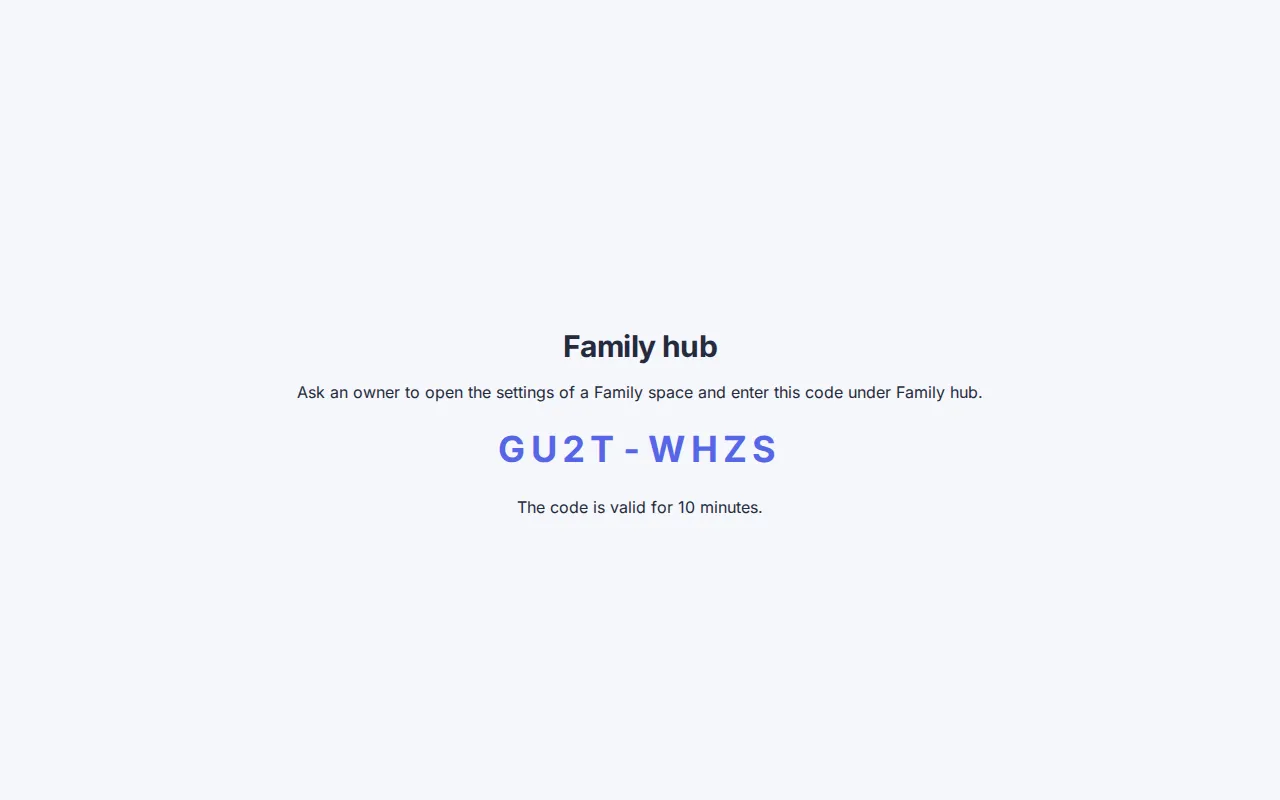
/hubon the tablet. It shows a code such asK7M2-9QXA. The code is valid for 10 minutes. - On your own device, open the settings of one of your Family spaces and find the section Family hub.
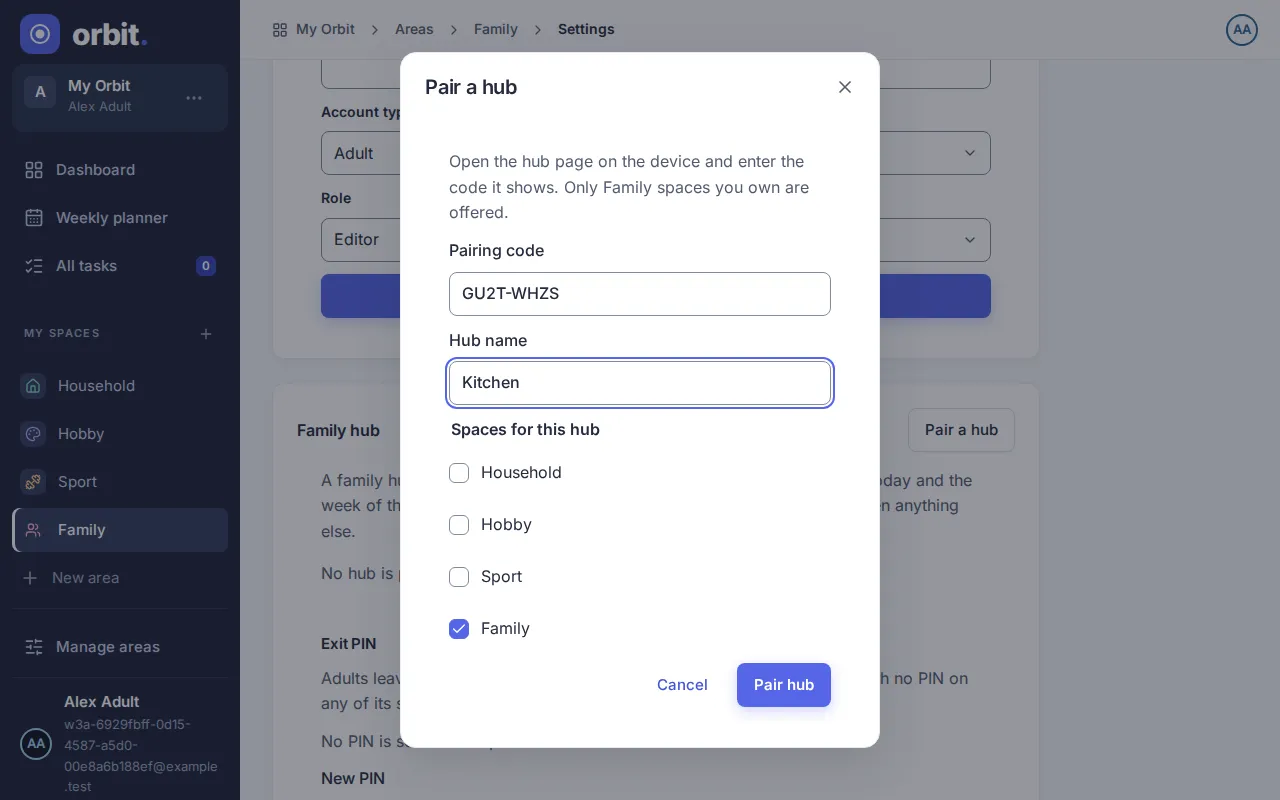
- Choose Pair a hub, enter the code, give the hub a name such as “Kitchen” and tick the Family spaces it should show. Only spaces you own are offered.
- Confirm. The tablet switches to today and the week within a few seconds.
What a child sees
Section titled “What a child sees”- The hub shows a large picture for every child of the paired Family spaces. A child taps their own picture. No PIN is needed.
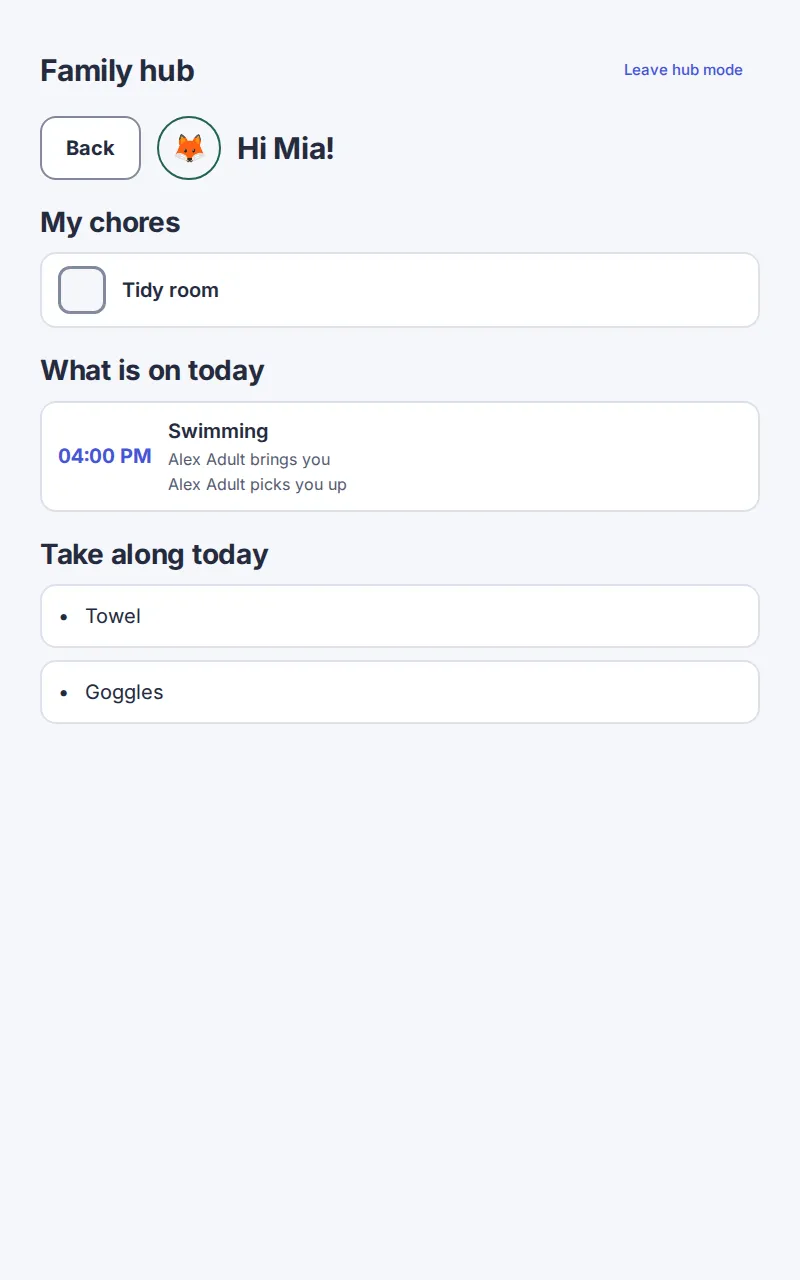
- The page shows “My chores”, the appointments of today with who brings and who picks up, and “Take along today” with the things from the appointment lists.
- To tick off a chore, tap it. The box gets a check mark and adults see at once that the chore is done and by whom. Tap it again on the same day to take it back.
- “Back” returns to the pictures. Today and the week of the family are shown below them.
A chore is a task assigned to the child with today as its date. Tasks of adults and of other children never appear. A tick from an adult, or from an earlier day, cannot be taken back on the hub.
Set a PIN
Section titled “Set a PIN”Adults leave hub mode on the tablet with a PIN. In the same section, enter a PIN of 4 to 6 digits and save it. The PIN belongs to the space. A hub accepts the PIN of any space it is paired to. After five wrong PINs the tablet locks the exit for 15 minutes.
Revoke a hub
Section titled “Revoke a hub”The section Family hub lists every hub with its name, when it was paired and when it was last seen. Choose Revoke to end a hub. It stops working at once, for all spaces it is paired to.
Questions
Section titled “Questions”Is the tablet a person’s account? No. It can only show today, the week and the children’s pages of the paired spaces. It cannot open settings, other spaces or any account.
Can any child open any child’s page? Yes. There is no PIN per child. The page shows only the child’s own chores, appointments and lists.
What if no PIN is set? Then the tablet offers no exit. Revoke the hub in the space settings instead.
The code does not work. Codes are valid for 10 minutes and for one use. Show a new code on the tablet.
A hub was not used for a long time. After 30 days without use it signs itself out and has to be paired again.
I switched the Family module off for a space. The hub stops showing that space, and the section Family hub disappears from its settings, until you switch the module on again. The hub stays paired meanwhile.
Version 0.1.0+production